Azure backup and recovery
Virtual machines, file shares and Cosmos DB, ready to restore.
Vinera Protect backs up Azure virtual machines and their disks, Azure Files shares and Azure Cosmos DB through an app you register in your own tenant. VM backups are agentless and incremental, and are copied to storage outside your subscription. You restore a whole VM, a single disk, files from a share or a Cosmos DB account to a point in time, from one console.
Azure keeps the platform running. Your resources are still yours to protect.
Azure looks after the infrastructure your workloads run on. What happens inside your subscription is up to you: a script that deletes the wrong virtual machine, an update that breaks a data disk, a file share overwritten from a mapped drive, or a deployment that writes bad data to a database.
A backup policy that runs on schedule, keeps restore points as long as you decide and copies virtual machines out of your subscription lets you put things back on your terms.
Virtual machines, file shares and databases, ready to restore.
Azure virtual machines
Protected
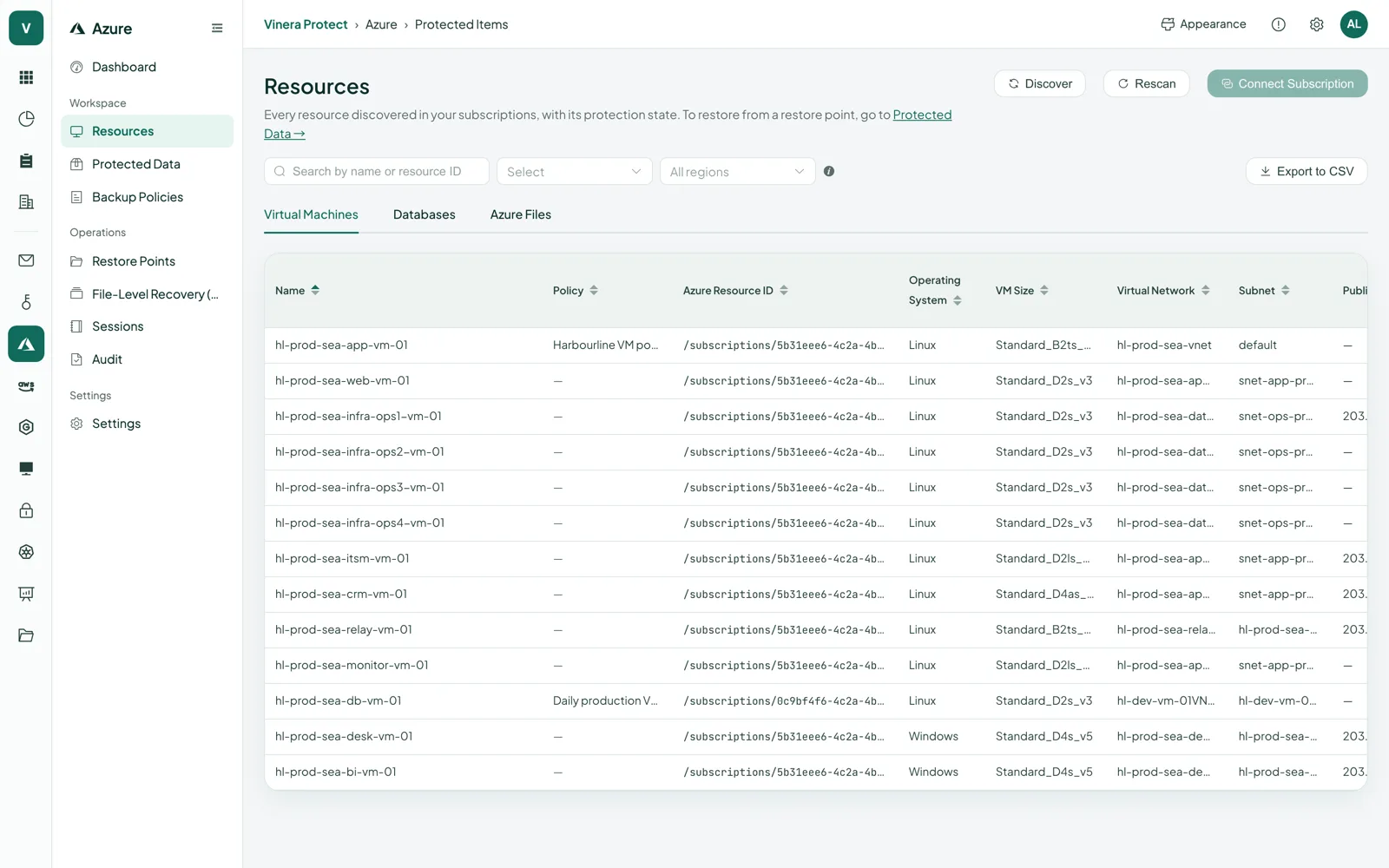
Linux and Windows VMs with every attached managed disk, OS and data. Exclude individual disks by ID or tag. Backups are copied to storage outside your subscription.
Recovery
Restore a whole VM to a new place or back where it was, restore selected disks as new managed disks, or restore fast from the latest snapshot.
Azure Files
Protected
SMB file shares, through scheduled share snapshots kept in your own storage account.
Recovery
Restore a whole share, or browse a snapshot and restore files and folders to the original share or another share, or download a single file.
Azure Cosmos DB
Protected
Accounts on the NoSQL, MongoDB, Gremlin and Table APIs. Protect keeps Azure’s own continuous backup on the 7-day or 30-day tier you choose, and sets it back if it changes.
Recovery
Restore to any second inside the restorable window, into a new account: the whole account or selected databases and containers.
Everything you set up once, then leave running.
Agentless
Nothing is installed in your virtual machines. Protect snapshots each disk and reads it through a read-only link that is revoked after use.
Incremental forever
After the first run, each VM backup reads and stores only the blocks that changed since the previous one.
Deduplicated and compressed
Repeated VM data is stored once and compressed in the backup repository.
Crash- or application-consistent
Crash-consistent by default. Turn on application-consistent backups through Azure’s own VM agent: VSS on Windows; on Linux, a file-system freeze with optional scripts of your own.
Outside your subscription
VM backups are copied to storage that Vinera holds. The app you register has no rights on it.
Every 15 minutes to once a year
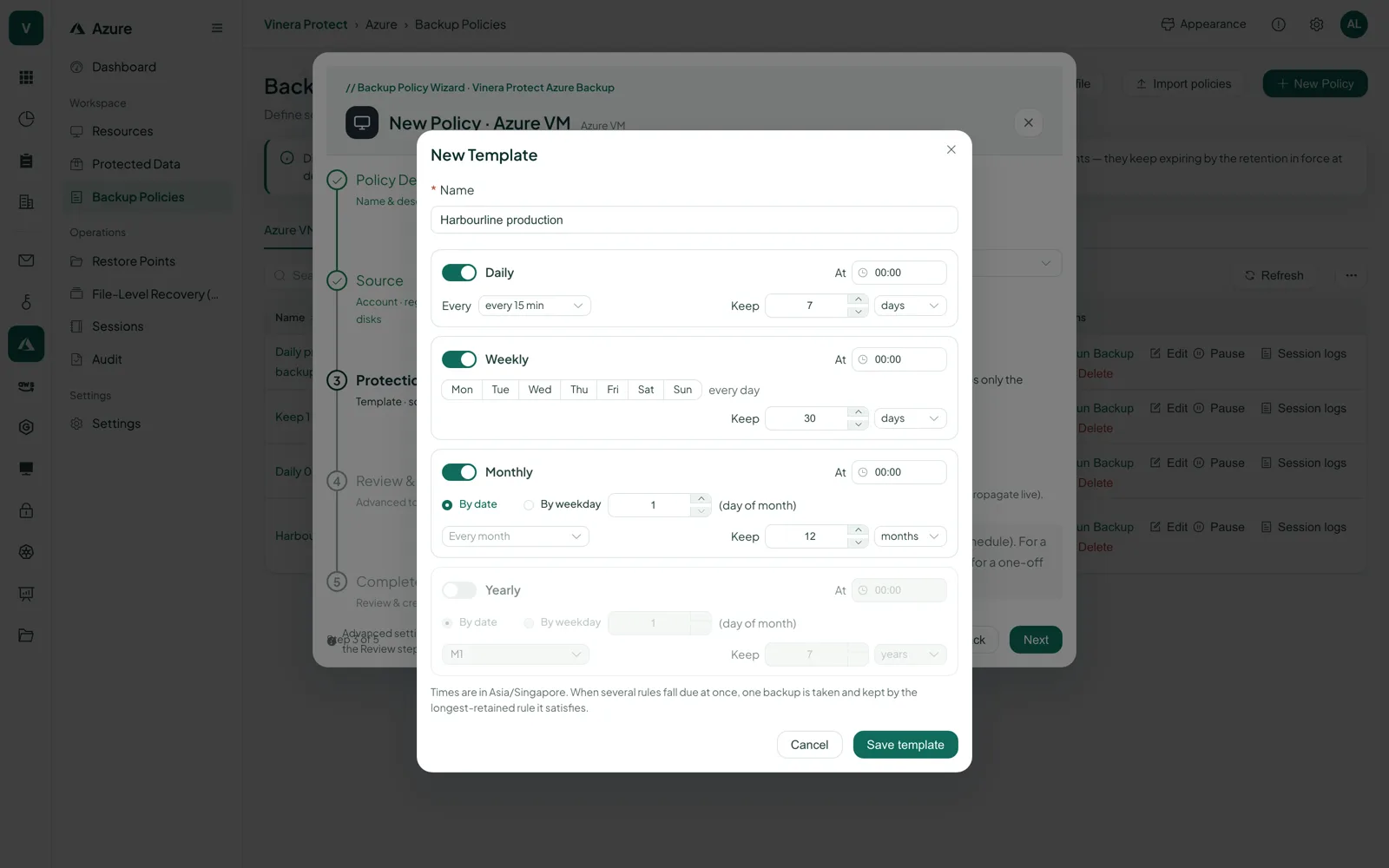
Daily, weekly, monthly and yearly rules in your own time zone, as often as every 15 minutes. Or run a policy by hand.
Policy templates
Start from the built-in Gold, Silver and Bronze templates for each workload, or save up to 5 of your own.
Checked before every restore
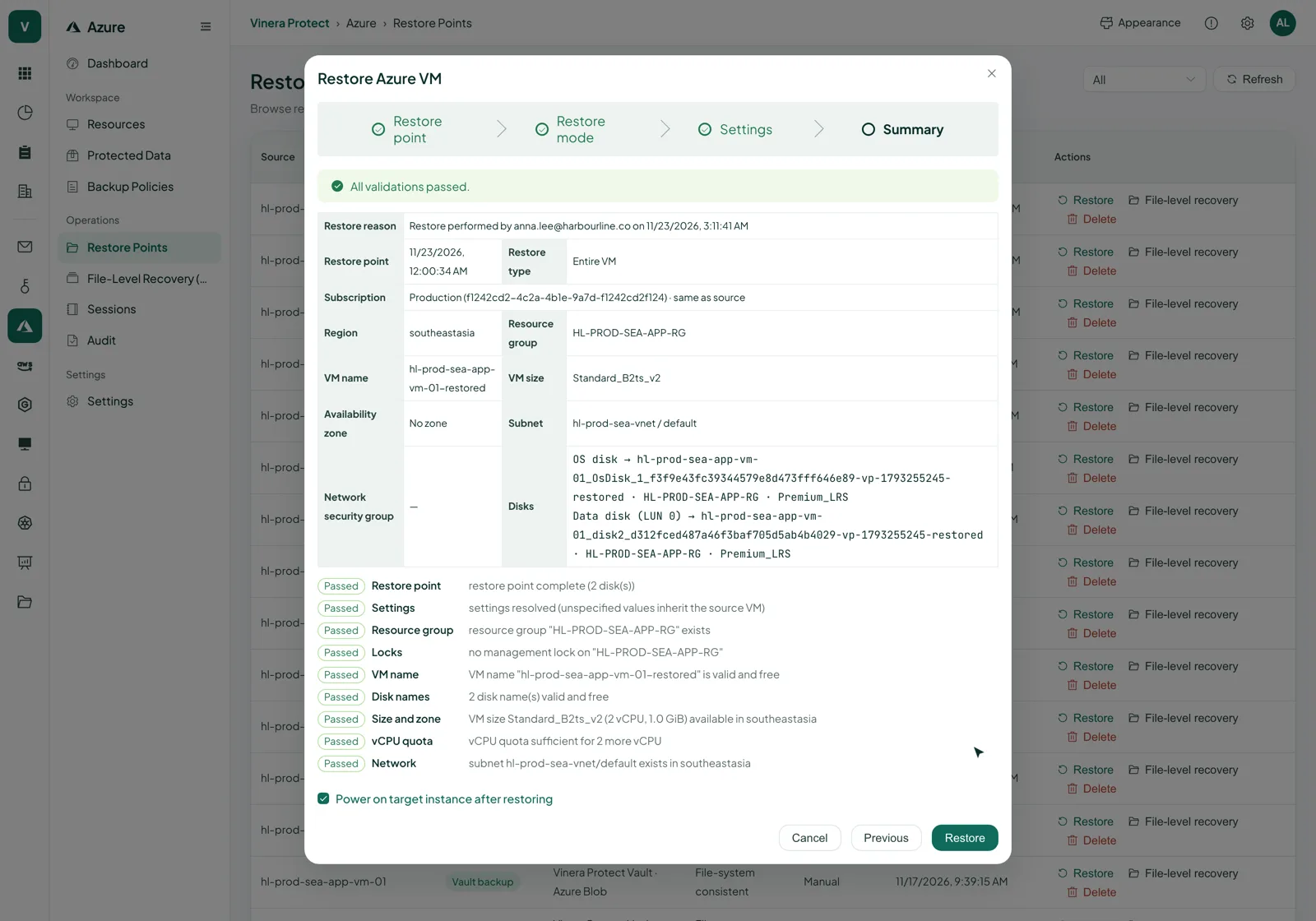
Names, network, size, quota, locks and the restore point itself are checked first, with a pass or fail for each.
Audit trail and export
Every action is logged with who, what and the result, refused attempts included. Export jobs and the audit log as CSV.
Decide what to protect and how long to keep it.
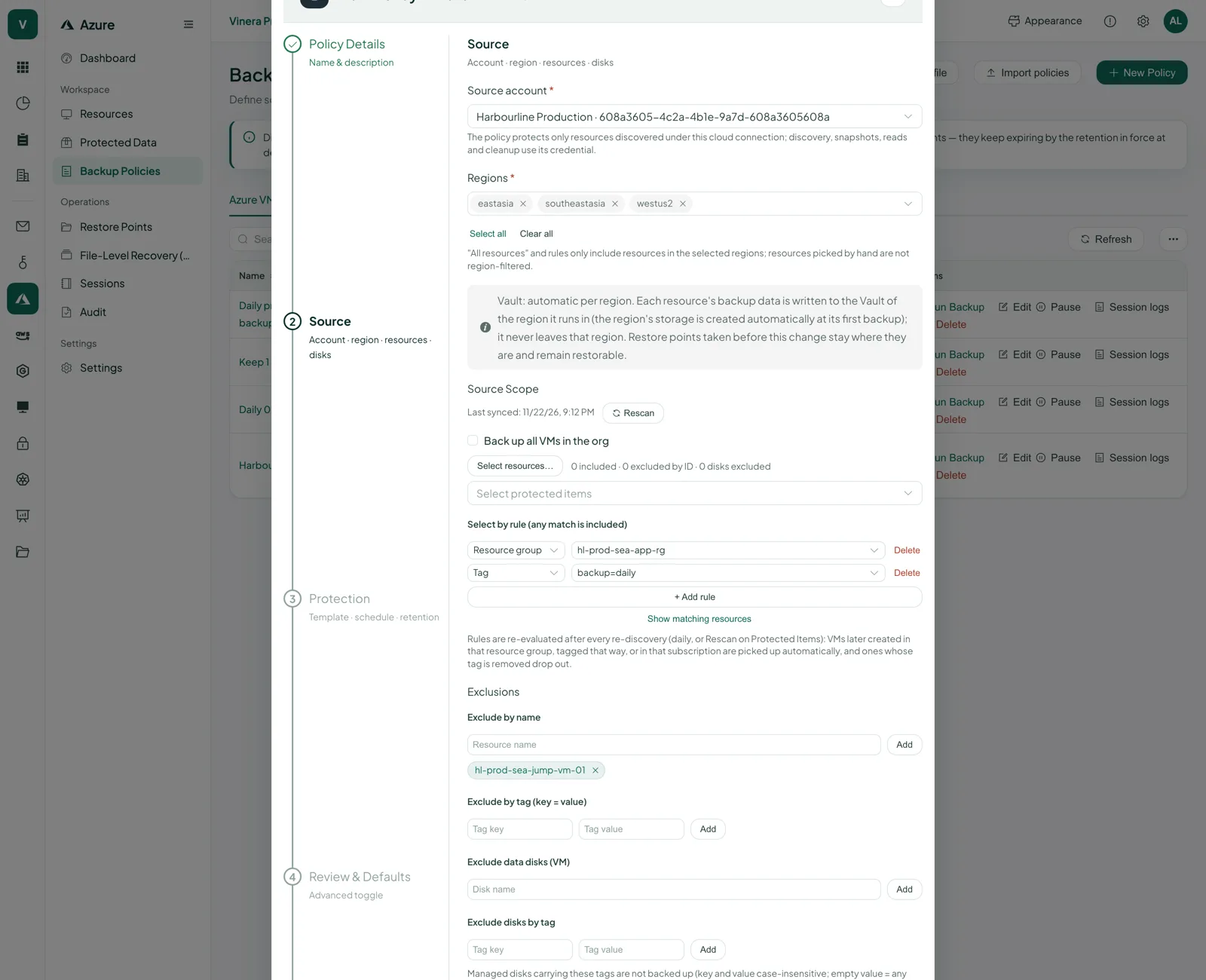
A policy says which resources, how often to run and how long to keep restore points. Start from a template or build your own; Protect runs it.
- Pick resources, or set rulesChoose virtual machines, shares and Cosmos DB accounts one by one, or select them by subscription, resource group, tag or region, with exclusions. When two policies cover the same resource, priority decides.
- Schedules that fitEvery 15, 20 or 30 minutes or every 1, 2, 4, 6, 8, 12 or 24 hours; chosen weekdays; a day of the month or its nth weekday; once a year. A failed scheduled backup is tried again, 3 times 15 minutes apart by default.
- Daily, weekly, monthly, yearlyEach rule keeps its restore points for its own number of days, weeks, months or years. A restore point stays while any of its windows still covers it. For Cosmos DB, choose the 7-day or 30-day continuous tier.
From one file to a whole virtual machine.
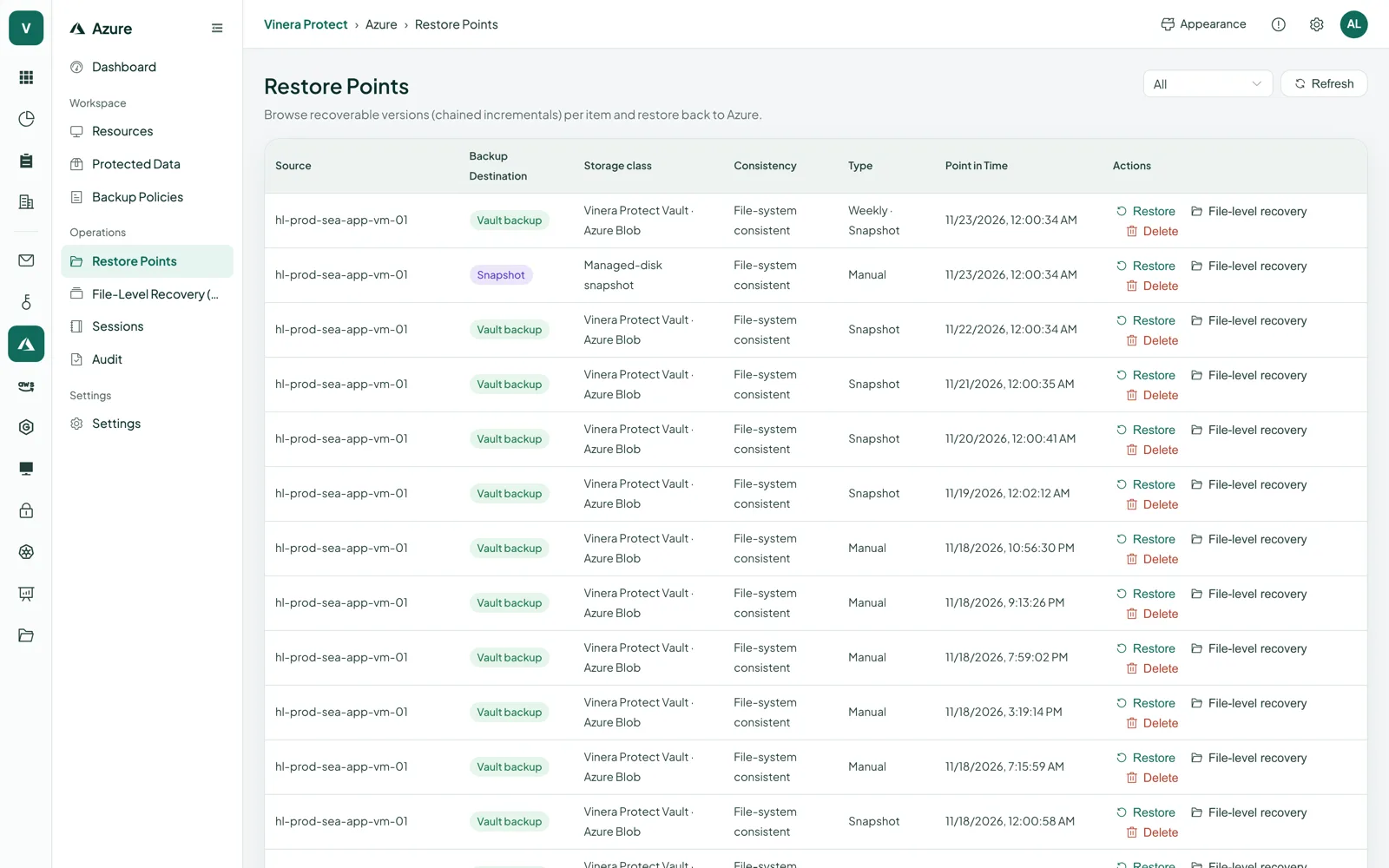
Pick a restore point and decide where it goes: a new virtual machine, the original one, new disks, a file share or a new Cosmos DB account.
- Choose where it goesSet the name, resource group, virtual network and subnet, network security group, size, zone and disk type for each disk, and whether to power on. Defaults follow the source VM. Restore into another connected subscription in the same tenant too.
- Back in place, nothing lostRestoring to the original VM swaps its disks and keeps its resource ID. The disks it replaces are kept, never deleted. A deleted VM is rebuilt under its original name and settings.
- Files back on the shareBrowse an Azure Files snapshot, then restore files and folders to the original share or another one. Keep both copies or overwrite, or download a single file.
| What you restore | Where it can go | How |
|---|---|---|
| A whole virtual machine | A resource group and network you choose, in the same subscription or another connected subscription in the same tenant | Full restore from a backup copy, with size, zone and disk types you set |
| A virtual machine, back where it was | The original VM, or the same name and settings if it was deleted | Disks swapped after a second confirmation; replaced disks are kept |
| A VM or its disks from the latest snapshot | The same subscription and region | Fast restore: disks are created straight from the snapshot |
| Selected disks | New managed disks | Disk-only restore |
| Several virtual machines | The targets you set for each | One request, one job per VM |
| Files and folders from Azure Files | The original share or another share | Restore, keeping both copies or overwriting, or download a file |
| A Cosmos DB account at a point in time | A new account in the same subscription | Any second in the restorable window; the whole account or selected databases and containers |
Every restore records the reason you give in the audit trail.
The moments a backup earns its keep.
“A clean-up script deleted the billing server.”
RebuildRestore it to its original location; Protect rebuilds the VM under its original name and settings.
“We need last week’s copy of a VM in the test subscription.”
RestoreRestore it into the test subscription with a new name and network, sized as you choose.
“Someone overwrote the Contracts folder on the finance share.”
BrowseOpen yesterday’s share snapshot and put the folder back, keeping both copies or overwriting.
“A deployment wrote bad data to Cosmos DB at 14:05.”
RestoreRestore the database as it was at 14:04 into a new account, and check it before you switch over.
Access you grant. Storage you can point to.
Protect reaches your subscription only through the app you register, and copies VM backups to storage outside it.
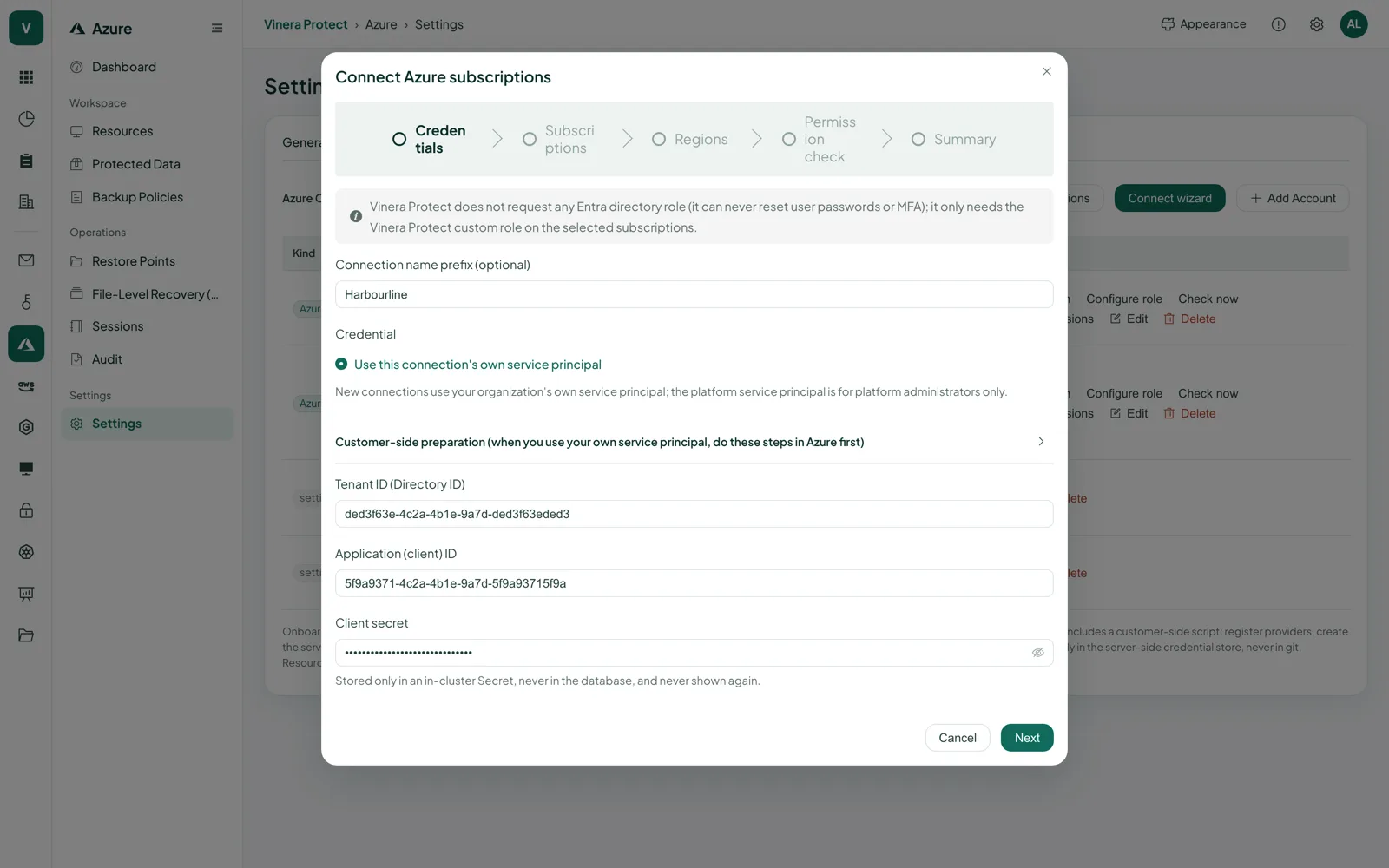
- Your app, a scoped roleYou create an app registration in your tenant and assign it a custom role on the subscription. The role has no data-plane actions, cannot assign roles and holds no directory roles. Its secret is never written to a database or a log, and never shown again.
- Why it can writeRestores create virtual machines and disks in your subscription, so the role can do that. Protect deletes only the snapshots it created and tagged, and keeps every disk it replaces.
- Stored where you can sayVM backups are kept in Azure Blob Storage in Southeast Asia (Singapore). Azure Files snapshots, Cosmos DB continuous backups and the latest snapshot of each disk stay in your own subscription and region.
- EncryptedData travels over HTTPS with TLS 1.2 or later, and the backup storage is encrypted at rest with platform-managed keys.
- Kept apart per customerEach organisation’s VM backups sit under their own path in the repository, deduplication never crosses customers, and each connection uses its own credentials.
Three things to have ready.
What you need
- A Vinera account. Your Vinera contact opens a Protect workspace and turns on the Azure module.
- An Azure administrator who can register an app and assign a custom role on the subscription.
- The subscriptions you want to protect. The console checks for each workload whether the role has everything it needs.
Then, in three steps
- Connect your subscription. Enter the app’s tenant ID, client ID and secret, then run the permission check.
- Set a policy. Pick a template or choose resources, schedule and retention yourself.
- Run your first restore. Restore a virtual machine into a new resource group on day one, so everyone knows it works.
Azure backup, in detail.
Screens and the film are real, taken from a demo workspace. All companies and people shown are fictional.
Doesn’t Azure already protect my resources?
Azure keeps its platform available. A deleted VM, a broken disk or an overwritten share inside your subscription is yours to recover. Protect runs your backups on a schedule, keeps restore points as long as you decide and copies VM backups out of your subscription.
What exactly is backed up?
Linux and Windows virtual machines with every attached managed disk; SMB shares in Azure Files; and Cosmos DB accounts on the NoSQL, MongoDB, Gremlin and Table APIs.
How often do backups run?
On the rules in each policy: as often as every 15 minutes, or daily, weekly, monthly or yearly, in the time zone you set. You can also run a policy by hand. Cosmos DB uses Azure’s continuous backup.
How long are backups kept?
As long as each rule says, in days, weeks, months or years. A restore point is kept while any of its daily, weekly, monthly or yearly windows still covers it. For Cosmos DB, the window is the 7-day or 30-day continuous tier you choose.
Where are my backups stored?
VM backups are copied to Azure Blob Storage in Microsoft Azure’s Southeast Asia (Singapore) region, outside your subscription. Azure Files snapshots, Cosmos DB continuous backups and the latest snapshot of each disk stay in your own subscription and region.
How does Cosmos DB backup work?
Protect uses Azure’s own continuous backup. It keeps each account on the 7-day or 30-day tier you choose and records the restorable window. You restore to any second in that window, into a new account.
What access does Protect need in my subscription?
An app registration you create, with a custom role on the subscription. It can create virtual machines and disks because restores need to; it has no data-plane actions and cannot assign roles. The console checks the role for each workload and tells you what is missing.
How do I get it?
Book a demo. Your Vinera contact opens a Protect workspace with the Azure module; you then connect your subscription, set a policy and run your first restore yourself.
One product, a module for each platform.
See your own subscription backed up.
Book a demo and we will connect a test subscription with you, back up a virtual machine and restore it together.