Entra ID backup
A snapshot of your directory, and every change since.
Vinera Protect takes a full snapshot of your Microsoft Entra ID directory through an app you register in your own tenant, with read-only access: users, groups and their members, applications, directory roles and devices. Snapshots are stored on Microsoft Azure in Singapore, and from one console you browse the directory as it was, compare snapshots attribute by attribute and export what you need.
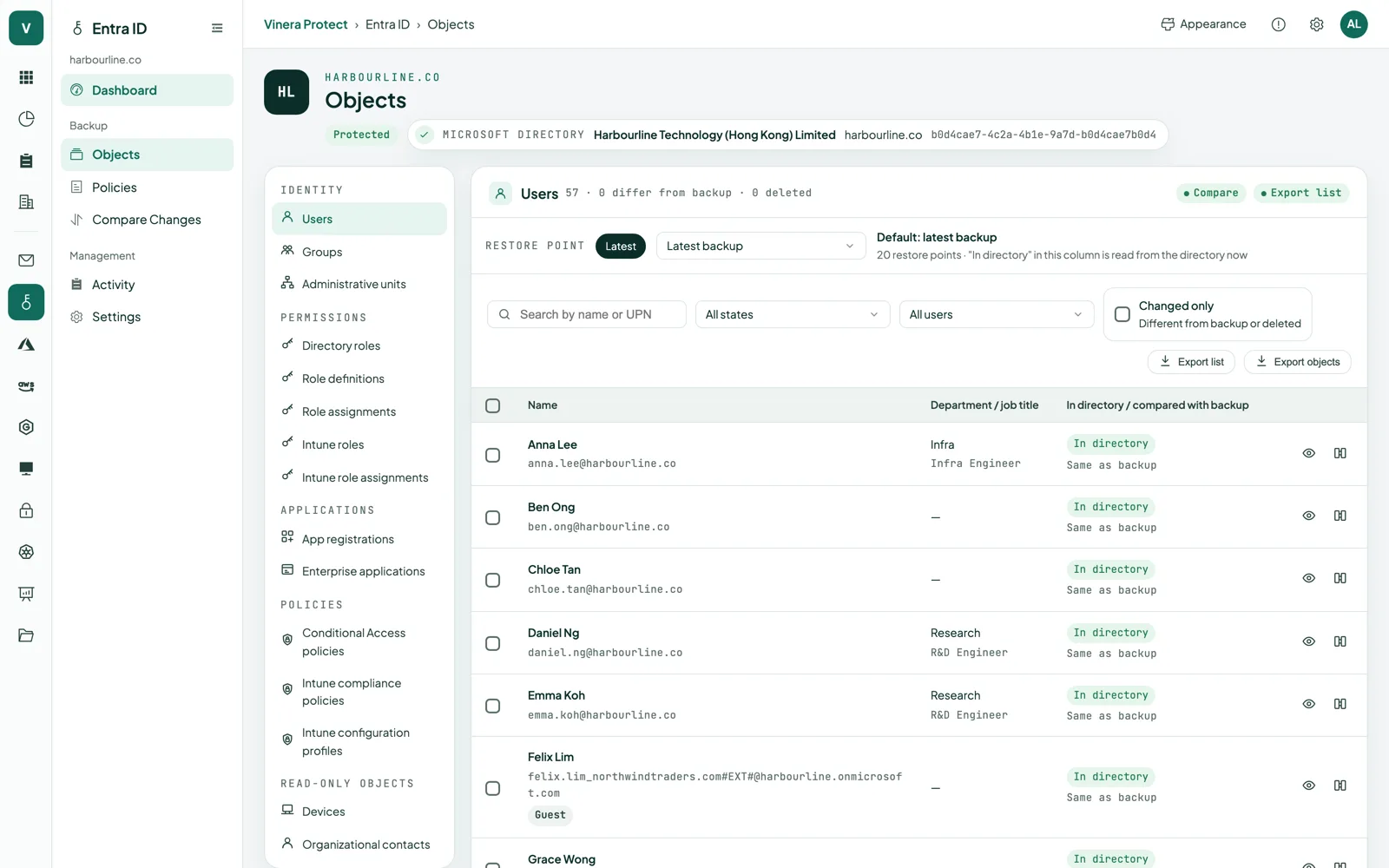
Every sign-in starts in the directory. Know what it looked like yesterday.
Microsoft keeps Entra ID running. What happens inside your directory is yours to account for: a role given to the wrong person, a group emptied by a script, an application whose owners were changed, or an administrator account that someone else has taken over.
The recycle bin helps for a while, then it runs out. A snapshot kept apart from your directory shows how every user, group, application and role looked before the change, and exactly what changed since.
The people, groups, applications and roles your sign-ins depend on.
Users
Backed up
Profile attributes such as name, user principal name, job title, department, assigned licences and on-premises sync settings, with each user’s manager. Passwords are never captured.
In the console
Browse each user as at any snapshot, compare with the directory today or another snapshot, and export all users as a .zip.
Groups
Backed up
Groups with their members and owners.
In the console
See who was in a group at any snapshot and compare membership between snapshots.
Applications
Backed up
App registrations and enterprise applications, with their owners. App secrets and certificates are never captured.
In the console
Compare an application’s properties and owners across snapshots, and export them.
Roles
Backed up
Built-in directory roles and their members, custom role definitions and role assignments.
In the console
See who held which role at any snapshot, compare role assignments and export them.
Devices
Backed up
Device objects registered in the directory.
In the console
Browse, compare and export devices as at any snapshot.
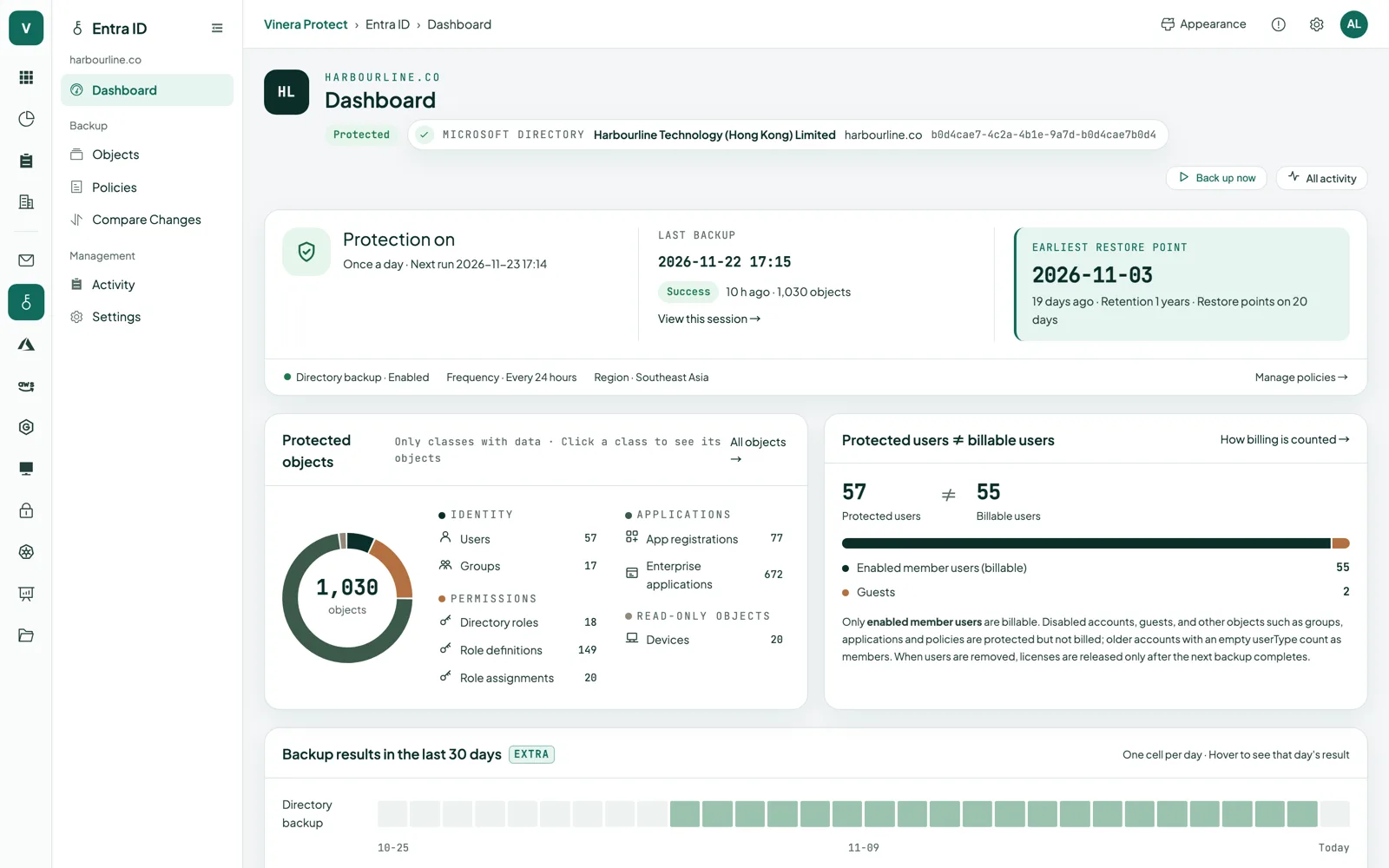
A clear record of your directory, run after run.
Agentless
Protect works through Microsoft Graph. Nothing is installed on devices or servers.
Read-only access
Backing up the directory needs read permissions only. Protect asks for nothing that could change it.
A full snapshot every run
Every object is read afresh on each run and kept exactly as Microsoft Graph returned it.
Every hour to every 30 days
Daily by default. Set any interval from 1 hour to 30 days, or run it now.
Gaps named, not hidden
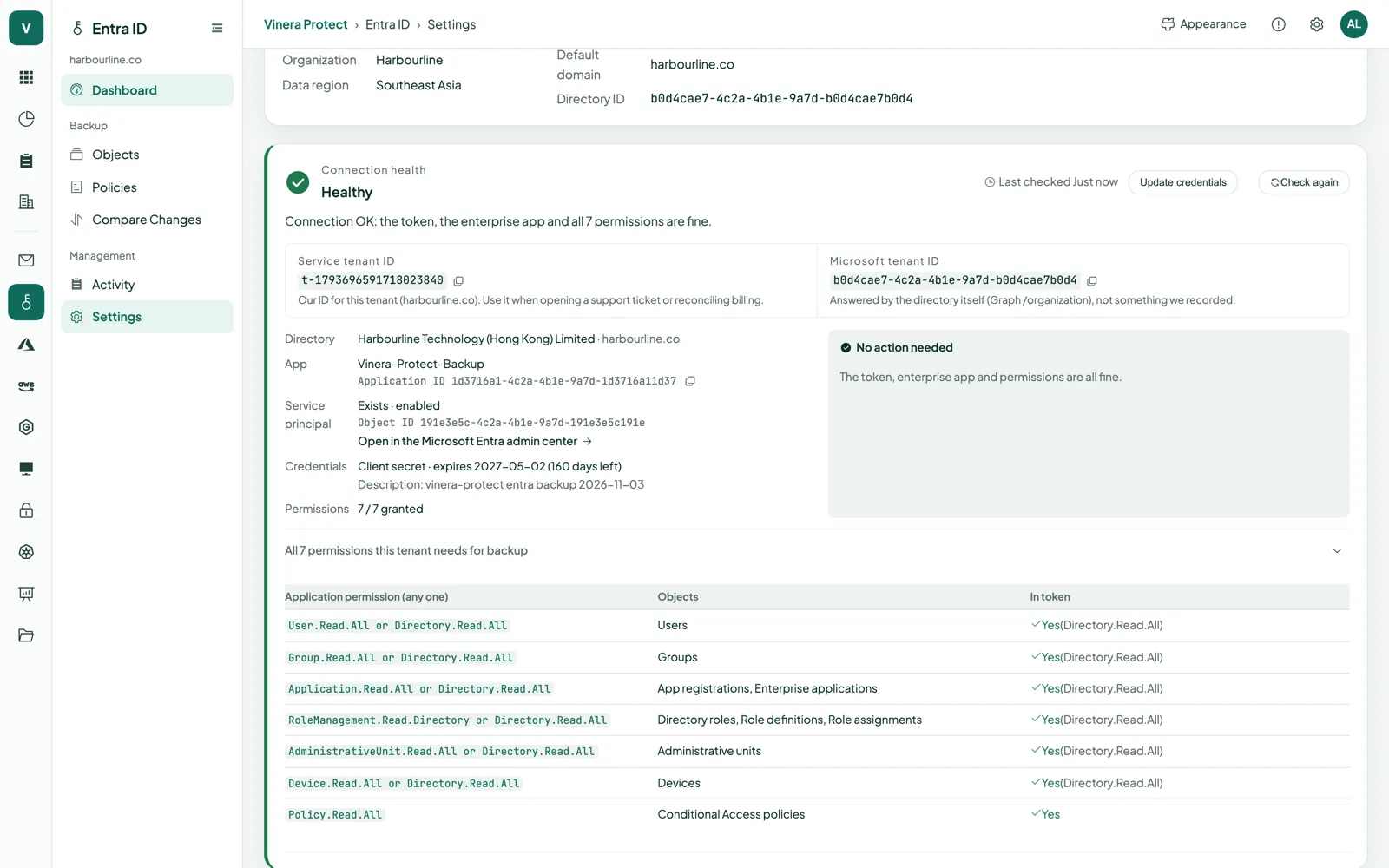
If the app cannot read a class of objects, the snapshot reports it as a gap and the console names the missing permission.
Browse any snapshot
Open the directory as it was, class by class, and show only the objects that were deleted or changed.
Compare attribute by attribute
Compare two snapshots, or one object with the directory today. Lists are compared regardless of order.
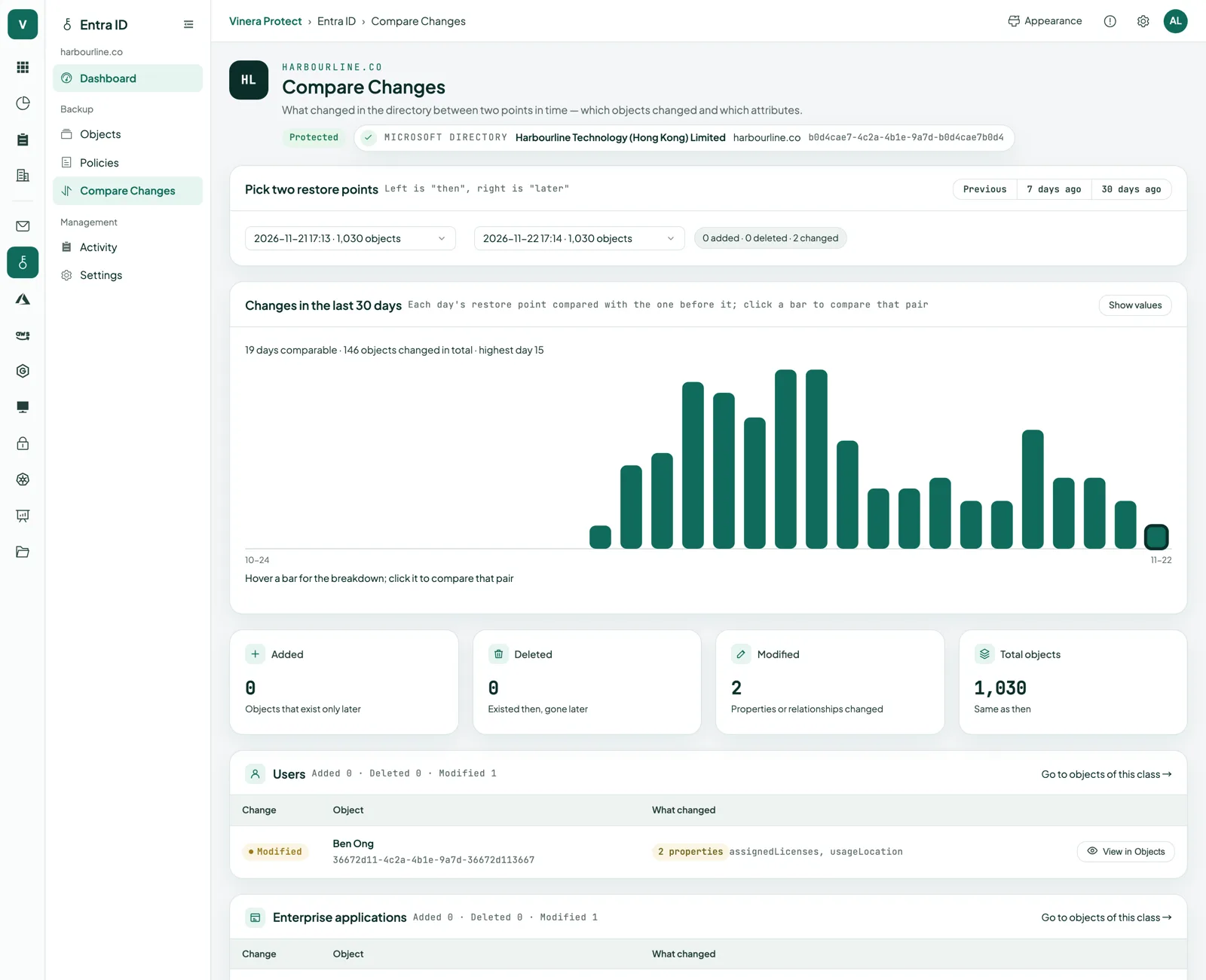
Changes over 30 days
A trend of directory changes over the last 30 days shows when something moved.
Export as a .zip
Export one class of objects from one snapshot, as JSON with its schema.
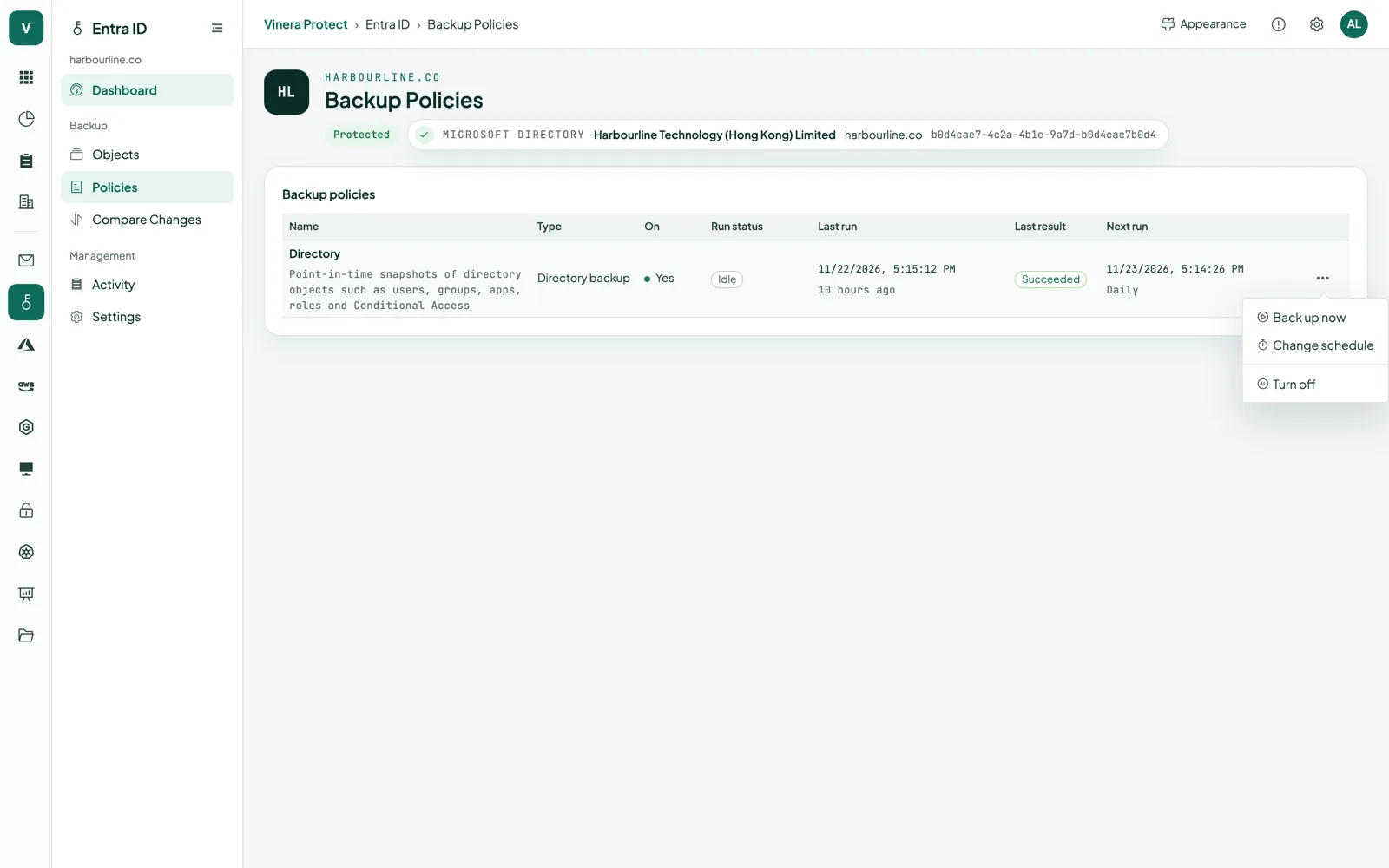
Set how often and what to leave out.
Each connected tenant has a directory backup policy: how often to take a snapshot and which objects to leave out. Set it once; Protect runs it.
- From every hour to every 30 daysSnapshots run daily by default. Choose any interval from 1 hour to 30 days, turn the policy off and on again, or take a snapshot now.
- Leave objects outName the objects you do not want in your snapshots. Each snapshot records which objects were left out.
- Missing permissions, namedThe connection card shows each class of objects and names the permission that is missing for any class the app could not read.
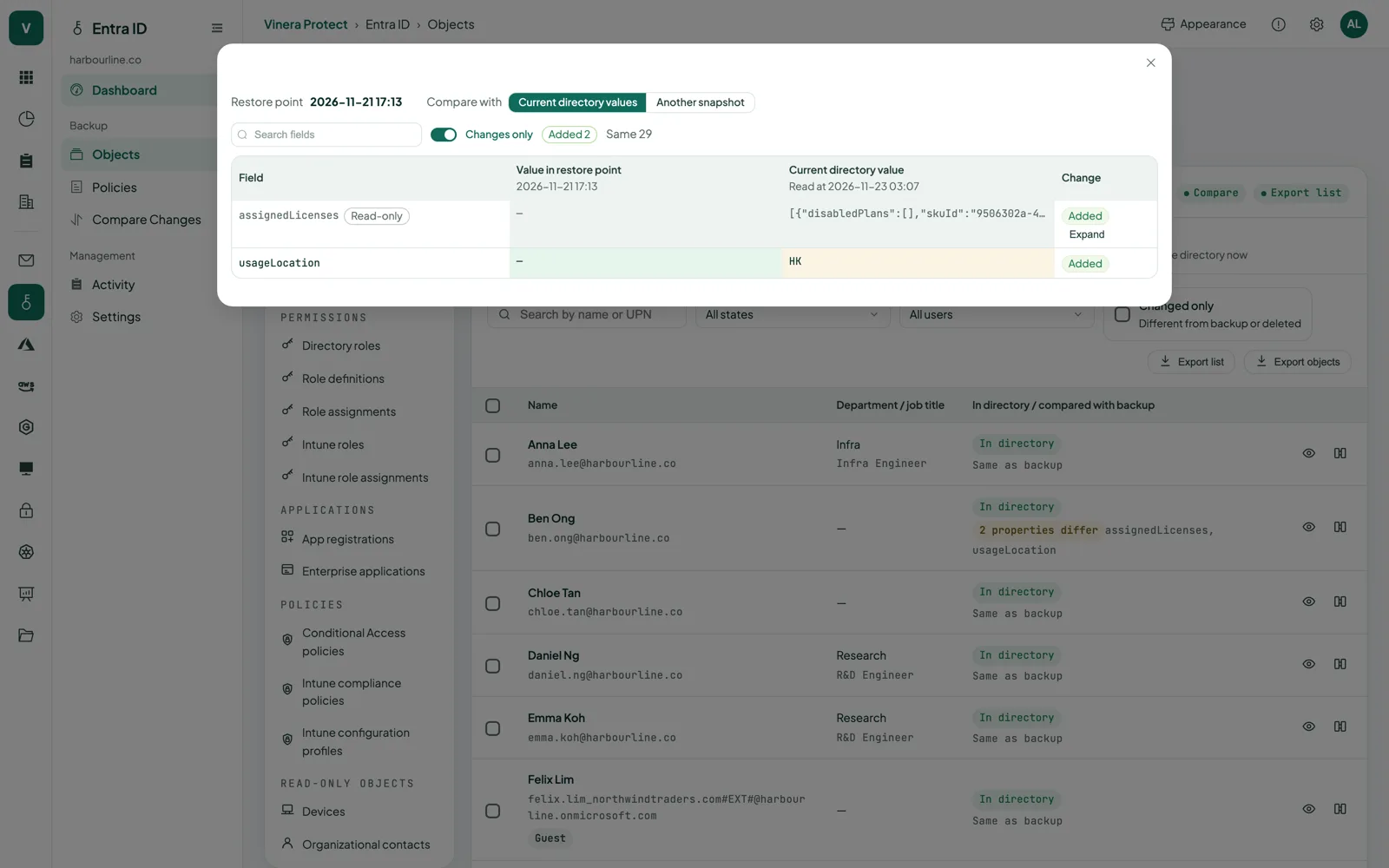
See what changed, and keep a copy.
Open any snapshot and browse the directory as it was: users, groups, applications, roles and devices, each with its properties. Compare it with another snapshot or with the directory today, and export what you need.
- Browse any snapshotMove through the directory class by class, and filter to the objects that were deleted or changed.
- Compare attribute by attributeSet two snapshots side by side, or check one object property by property against the directory today or another snapshot. A list that was only reordered does not show as a change.
- Export a class as a .zipThe .zip holds the objects as JSON, their schema and a README. Every export is recorded on the tenant’s Activity page.
| What you need | Where to find it | How |
|---|---|---|
| An object as it was at a snapshot | The snapshot’s objects, by class | Browse and open its properties |
| Objects deleted or changed | Any snapshot | Filter by deleted or changed |
| What changed between two snapshots | The Changes view | Attribute-by-attribute comparison |
| One object against the directory today | The object’s comparison | Property-by-property comparison |
| How much changed recently | The Changes view | Trend over the last 30 days |
| A whole class of objects | One snapshot | Export as a .zip with JSON, schema and README |
Each export link works once and expires after five minutes.
The moments a snapshot earns its keep.
“Finance can no longer open the payroll app. What changed?”
CompareCompare last night’s snapshot with the one before and see which members left the group that grants access.
“The auditors want everyone who held an admin role at quarter end.”
ExportOpen the snapshot from that day and export its role assignments as a .zip.
“An account was deleted and we need its details to set it up again.”
BrowseFind the user in a snapshot from before the deletion and read its job title, department, manager and licences.
“Did anyone touch our app registrations this month?”
CompareCheck the 30-day change trend, then compare snapshots to see which applications and owners changed.
Read-only access. Storage you can point to.
Protect reads your directory only through the app you register, never asks for permission to change it, and keeps every snapshot in storage separate from your tenant.
- Your app, read-onlyYou create the app registration, grant read-only Microsoft Graph application permissions with admin consent, and paste its ID and secret into the console. Remove the app and access ends.
- No passwords, no secretsUser passwords, app secrets and certificates are never part of a snapshot.
- Stored in SingaporeSnapshots are kept in Azure Blob Storage in Southeast Asia (Singapore), zone-redundant within the region.
- EncryptedEach snapshot file is sealed with AES-256-GCM, the storage is encrypted at rest, and data travels over HTTPS with TLS 1.2 or later.
- Kept apart per customerEvery snapshot belongs to the tenant it was taken from. No other customer can see or export it.
Three things to have ready.
What you need
- A Vinera account. Your Vinera contact opens a Protect workspace and turns on the Entra ID module.
- An Entra ID administrator who can register an app and grant admin consent.
- Read-only Microsoft Graph application permissions for the directory. The connection guide in the console lists each one.
Then, in three steps
- Connect your tenant. Register the app, grant consent and paste its ID and secret into the console.
- Set the policy. Choose how often to take a snapshot and which objects to leave out.
- Compare your first snapshots. Once the second snapshot is in, open the Changes view and see what moved.
Entra ID backup, in detail.
Screens and the film are real, taken from a demo workspace. All companies and people shown are fictional.
Doesn’t Entra ID already keep deleted objects?
Entra ID holds some deleted objects in its recycle bin for a limited time. A separate snapshot shows how every user, group, application and role looked when it was taken, and it is kept apart from your directory.
What exactly is backed up?
Users and their managers; groups with members and owners; app registrations and enterprise applications with their owners; built-in directory roles and their members, custom role definitions and role assignments; and devices. Passwords, app secrets and certificates are never captured.
How often do backups run?
Daily by default, or at any interval you set from 1 hour to 30 days. You can also take a snapshot by hand. Every run is a full snapshot of the directory.
What can I do with a snapshot?
Browse the directory as it was, filter to deleted or changed objects, compare two snapshots or one object with the directory today, and export a class of objects as a .zip with JSON, its schema and a README.
Where are my snapshots stored?
In Azure Blob Storage in Microsoft Azure’s Southeast Asia (Singapore) region, zone-redundant within the region.
What access does Protect need in my tenant?
An app registration you create, with read-only Microsoft Graph application permissions and admin consent. Protect never asks for permission to change your directory. Remove the app and Protect can no longer reach it.
Does it work alongside Microsoft 365 backup?
Yes. Entra ID sits in the same Protect workspace as the Microsoft 365 module and uses the same connection to your tenant.
How do I get it?
Book a demo. Your Vinera contact opens a Protect workspace with the Entra ID module; you then connect your tenant, set the policy and compare your first snapshots yourself.
One product, a module for each platform.
See your own directory in a snapshot.
Book a demo and we will connect a test tenant with you, take a snapshot and compare it with the next one.