Endpoint backup for Windows and Linux
Every laptop’s files, ready to restore, even when the laptop is gone.
Vinera Protect backs up files and folders on Windows and Linux laptops, desktops and servers through a small agent you download from the console. Backups go to a storage account dedicated to your organisation on Microsoft Azure in Singapore, locked for 30 days, and you restore files by download or straight to a device from one console.
The files that matter often live on one machine.
Drafts, exports, project folders and server data often sit on a single laptop or server and nowhere else. A laptop is left in a taxi, a disk fails, a file is saved over, or ransomware encrypts a server’s folders, and that copy is gone.
Sync folders copy a deletion or a damaged file to every device. A backup that sits apart from the device, with restore points you can pick, lets you put files back as they were.
Files and folders on the machines your work lives on.
Windows laptops and desktops
Protected
Files and folders in every user’s profile, on shared machines too, plus any paths you add. Open files are captured through VSS.
Recovery
Download files and folders as a .zip, even when the laptop is offline or lost, or send them back to the laptop or to another device.
Windows Server
Protected
Files and folders on the server’s disks, in the paths you choose. Files held open by running applications are captured through VSS.
Recovery
Put files back on the server, in their original folder or a new one, or download them as a .zip.
Linux desktops and servers
Protected
Files and folders in users’ home folders and in the paths you add, on x64 and ARM64. The agent runs as a systemd service.
Recovery
Send files back to the machine or to another device, or download them as a .zip.
Earlier versions and deleted files
Protected
Each restore point keeps the files as they were at that moment, including files since deleted from the device.
Recovery
See every backed-up version of a file and restore the one you need, or find recently deleted files and bring them back.
Install once, then it backs up in the background.
Windows and Linux
Install the agent on Windows from an x64 MSI, or on Linux from a deb or rpm package for x64 or ARM64. It runs as a service.
Profile folders by default
Every user’s profile folders are covered from the start. Add paths, exclude folders or file patterns, and leave out cloud-sync folders.
Open files on Windows
Through VSS, the agent captures files that are open or locked, such as an Outlook data file.
Incremental
After the first run, only changed data is sent. Repeated content is stored once and compressed.
Made for laptops
A run missed while the laptop slept or was switched off catches up afterwards, and a backup can start when the network comes back.
Picks up where it left off
After a reboot, a restart or a dropped connection, the backup resumes and sends only what is left.
Restore with the device offline
Restore points are listed in the console, so you can download files from a laptop that is switched off, lost or stolen.
Locked for 30 days
Endpoint backups are locked for 30 days by Azure-enforced immutability. Inside that window nobody can delete them, and that includes us.
Alerts and a protection report
Failed backups, devices gone offline and outdated agents raise an alert in the console. A report shows how well your devices are covered.
Decide what to back up, when, and how much network to use.
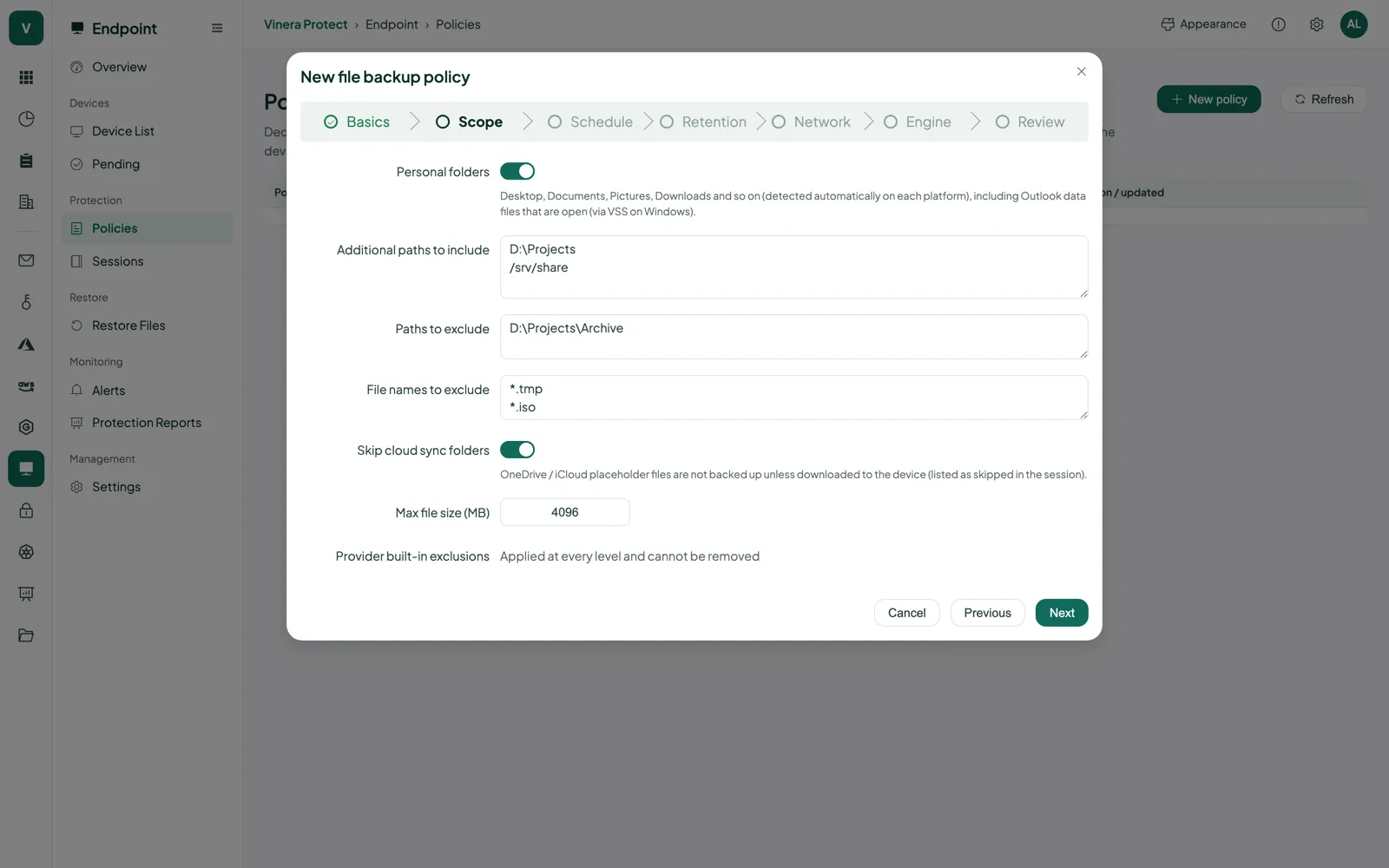
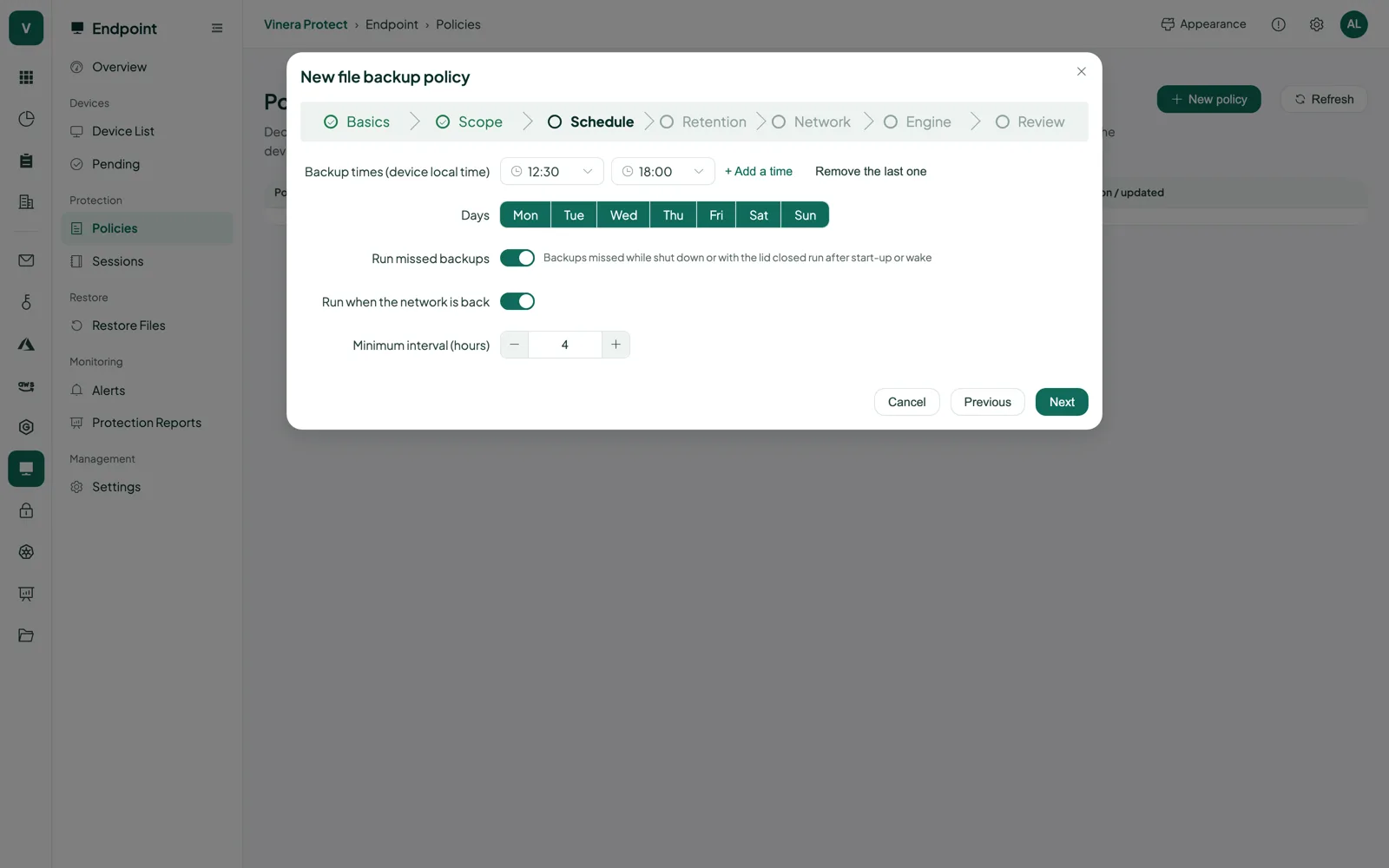
A policy says which folders to back up, when to run and how much bandwidth to use. Assign it to devices, and each device follows it.
- Folders and exclusionsStart from every user’s profile folders, then add paths, exclude folders or file patterns, set a maximum file size and skip OneDrive or iCloud Drive folders. Caches, temporary files and the recycle bin are left out for you.
- Times that suit the devicePick clock times in the device’s local time and the weekdays to run. Missed runs catch up, failed runs are retried, at first after 5 minutes and then less often, up to an hour apart, and you can start a backup from the console at any time.
- Bandwidth by time of dayCap upload speed in Mbit/s for the time windows you choose, such as office hours, so backups do not crowd out other work.
From one file to a whole folder, by download or to a device.
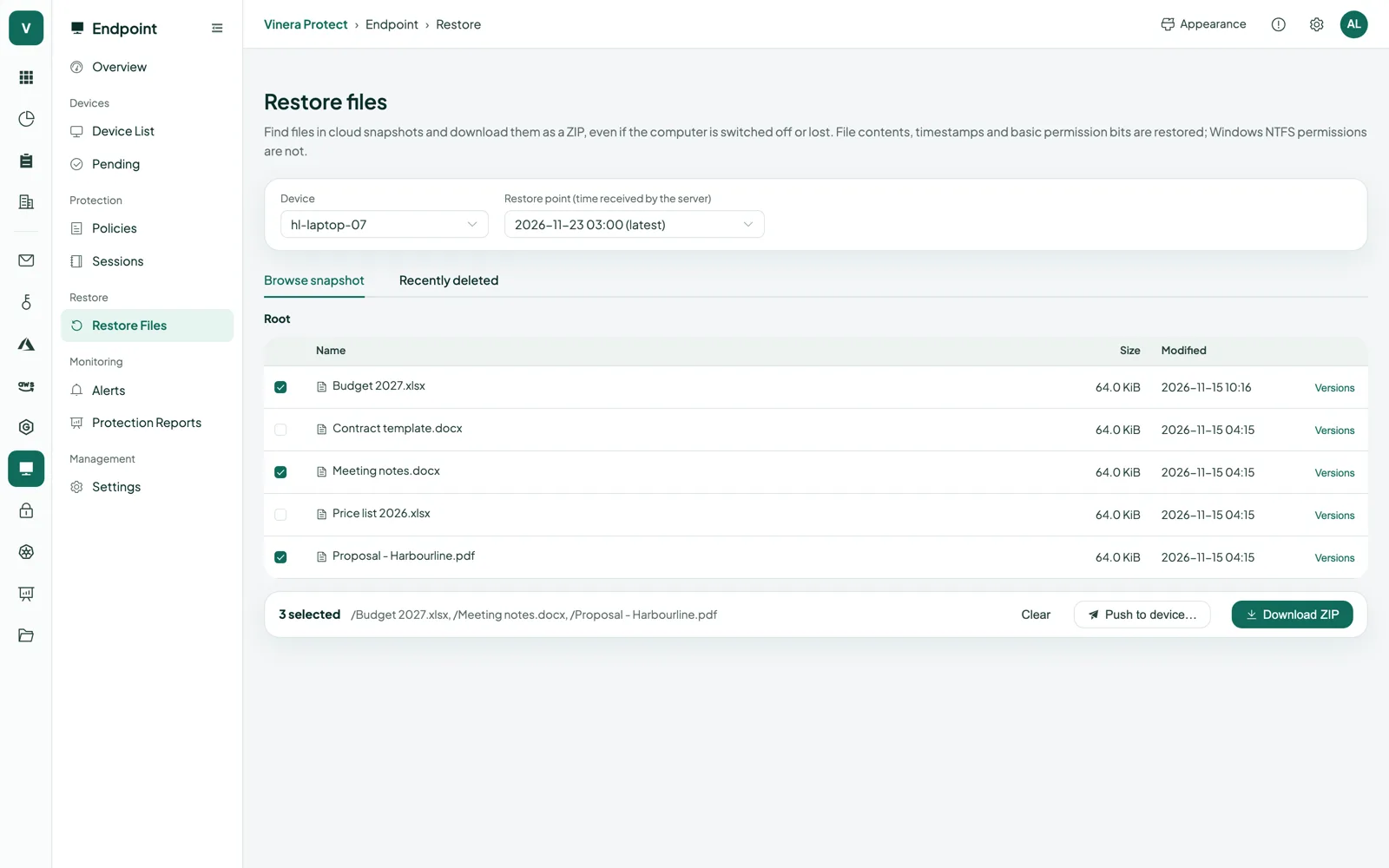
Pick a device and a restore point, browse its folders, select what you need and choose where it goes. Files come back with their contents and timestamps.
- Download, even when the device is goneDownload the files you select as a .zip from the console. The device can be offline, lost or stolen.
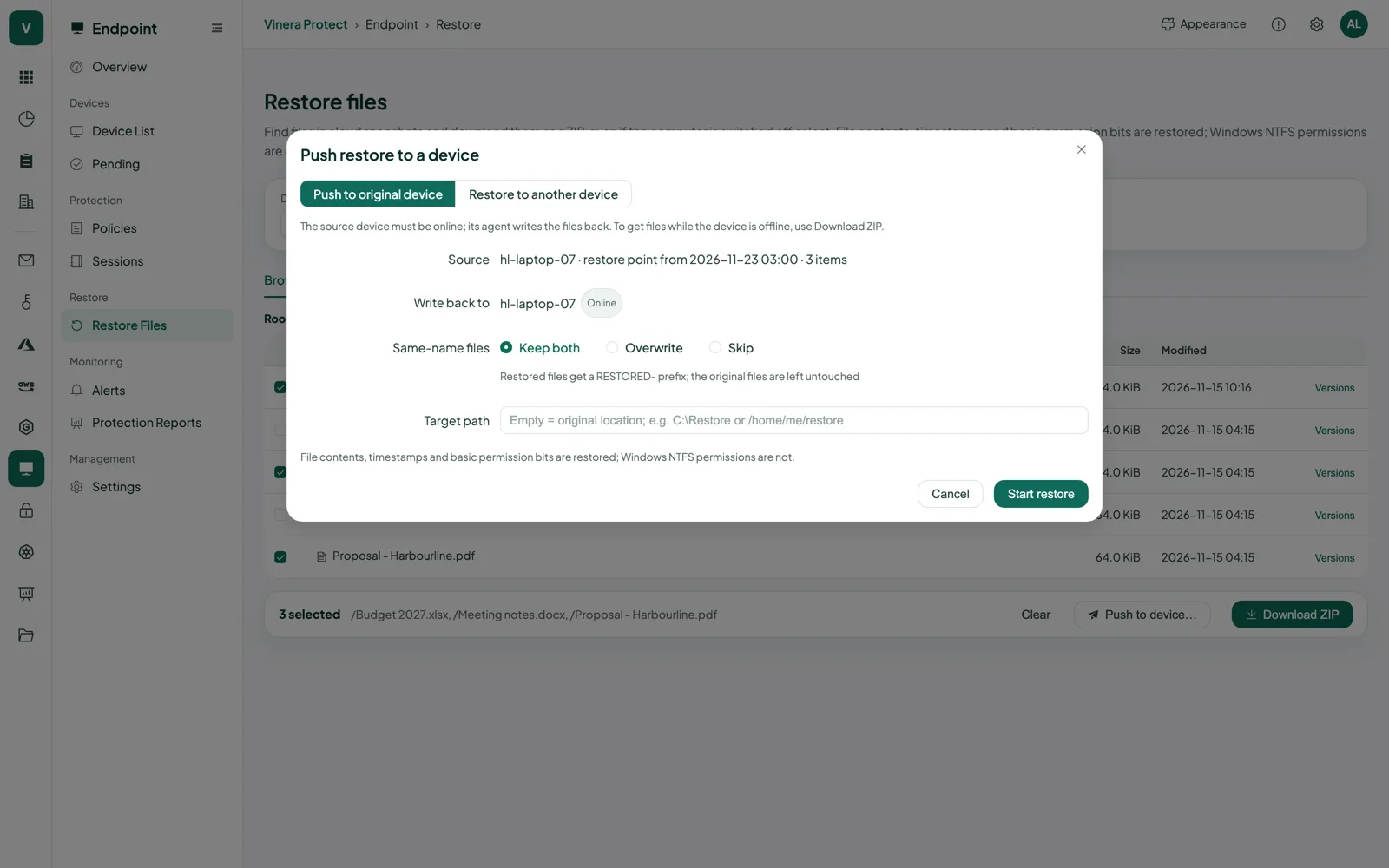
- Send files to a devicePush files back to the original device, into their original folder or another one, or to another device in your organisation.
- Decide what happens to existing filesOverwrite them, skip them, or keep both copies.
| What you restore | Where it can go | How |
|---|---|---|
| Files and folders | Your computer, through the browser | Download as a .zip, with the device online or not |
| Files and folders | The original device, in the original folder or another folder | Restore to device; overwrite, skip or keep both |
| Files and folders | Another device in your organisation | Restore to a folder you choose on that device |
| An earlier version of a file | Download, or the original device | Pick it from the file’s version history |
| A file deleted from the device | Download, or the original device | Find it in the recently deleted list |
| The folders of a lost or stolen laptop | A replacement device in your organisation | Open the latest restore point and restore to the new device |
Download links stay valid for 24 hours.
The moments a backup earns its keep.
“My laptop was stolen at the airport.”
RestoreOpen the laptop’s latest restore point and send its folders to the replacement laptop, or download them as a .zip.
“Someone deleted the project folder last week.”
FindFind it in the recently deleted list and put it back in its original place on the device.
“I saved over this month’s budget.”
Roll backOpen the file’s version history, pick yesterday’s version and keep both copies.
“Overnight, the files on our Windows server were encrypted.”
RestoreChoose a restore point from before it happened and restore the folders into a new folder on the server. The backups were locked, so nobody could delete them.
Devices you approve. Storage you can point to.
Only devices you enrol and accept can send backups, and every backup goes to storage dedicated to your organisation.
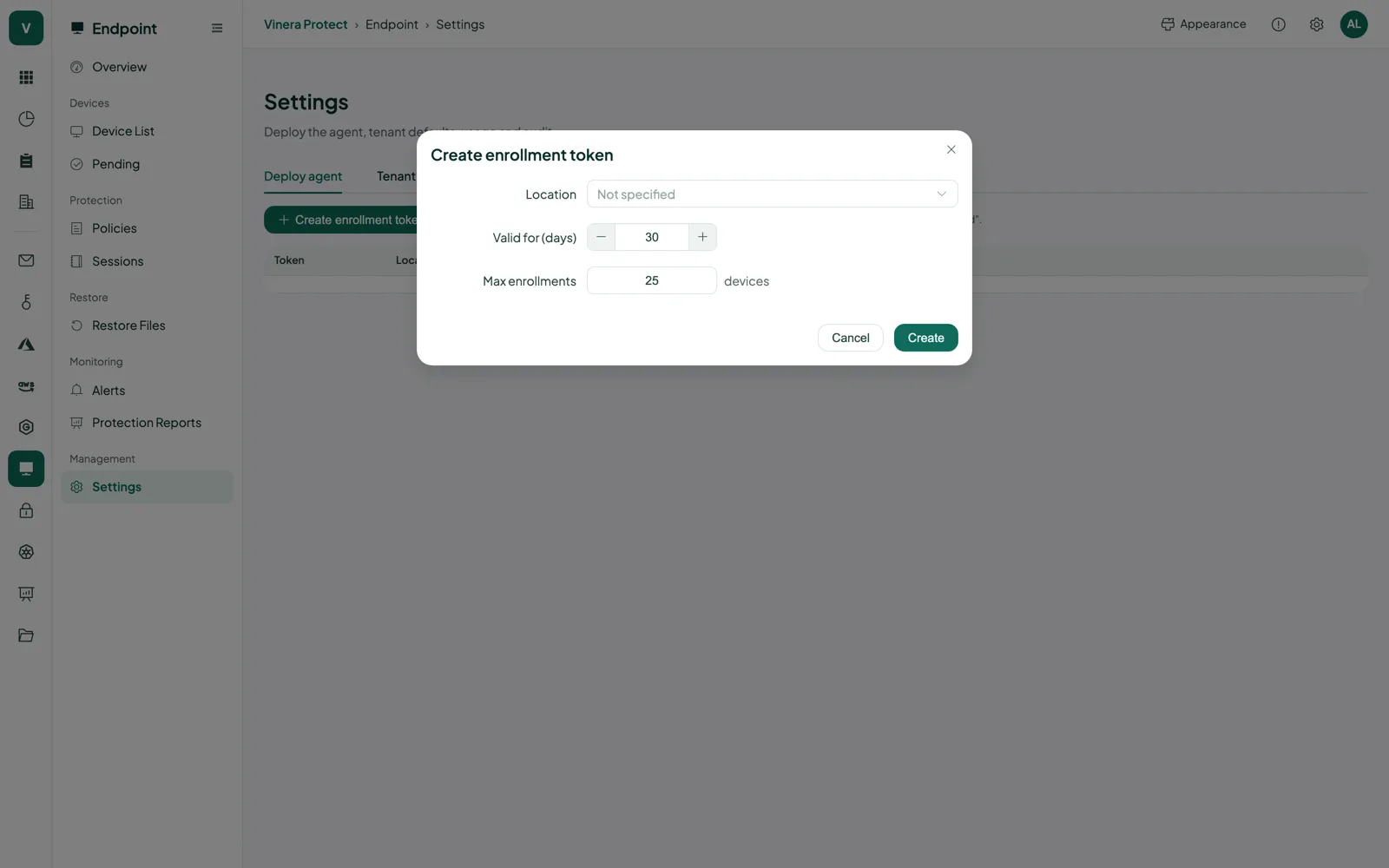
- Devices you acceptYou create an enrolment token in the console. It is shown once, can expire after a date or a number of uses, and can be revoked. An administrator then accepts each new device, and revoking a device cuts its access.
- Devices add, never deleteEach device can add backups but cannot delete them, and cannot read the backups of another device.
- Stored in SingaporeBackups are kept in a storage account dedicated to your organisation on Microsoft Azure in Southeast Asia (Singapore), zone-redundant within the region, with public blob access turned off.
- EncryptedThe backup repository is encrypted, and devices never receive its password. Devices connect over TLS to a pinned certificate, and storage accepts only HTTPS with TLS 1.2 or later.
- Kept apart per customerEach organisation has its own storage account, backup repository, repository server and credentials.
Three things to have ready.
What you need
- A Vinera account. Your Vinera contact opens a Protect workspace and turns on the Endpoint module.
- Windows or Linux laptops, desktops or servers, and someone who can install software on them.
- An enrolment token, which you create in the console’s settings.
Then, in three steps
- Enrol your devices. Download the agent from the console, install it with your enrolment token and accept each device.
- Set a policy. Choose the folders, the backup times and any bandwidth limit, then assign the policy to your devices.
- Run your first restore. Put a file back on day one, so everyone knows it works.
Endpoint backup, in detail.
Screens and the film are real, taken from a demo workspace. All companies and people shown are fictional.
What exactly is backed up?
Files and folders. By default, every user’s profile folders on the device; you can add other paths and exclude folders, file patterns and cloud-sync folders. On Windows, open and locked files are captured through VSS.
Which devices can I protect?
Windows and Linux laptops, desktops and servers. Windows uses an x64 MSI package; Linux uses deb or rpm packages for x64 and ARM64. You download them from the console.
How often do backups run?
At the clock times and on the weekdays you set in the policy, in each device’s local time, or whenever you start one from the console. Missed runs catch up when the device is back, and after the first run only changes are sent.
Can I get files back if a laptop is lost?
Yes. Restore points are kept in the console, so you can download the laptop’s files as a .zip or send them to a replacement device without the original laptop.
Can someone delete my backups?
Endpoint backups are locked for 30 days by Azure-enforced immutability, and the lock is extended for data that restore points still use. Inside that window nobody can delete them, and that includes us. Devices can only add backups, and the console has no delete action for restore points.
Where are my backups stored?
In a storage account dedicated to your organisation on Microsoft Azure in Southeast Asia (Singapore), zone-redundant within the region.
Can I see who restored what?
Yes. The audit log in the console lists restores, downloads, enrolment-token actions and device actions.
How do I get it?
Book a demo. Your Vinera contact opens a Protect workspace with the Endpoint module; you then enrol your devices, set a policy and run your first restore yourself.
One product, a module for each platform.
See your own devices backed up.
Book a demo and we will enrol a test device with you, run a backup and restore a file together.