Microsoft 365 backup and recovery
Your own copy of mail and files, ready to restore.
Vinera Protect backs up Exchange Online mail, calendars and contacts, OneDrive, SharePoint document libraries and Teams through an app you register in your own tenant. Each backup is copied into a separate repository on Microsoft Azure in Singapore, and you restore an email, a meeting, a contact, a file or a whole site’s files from one console.
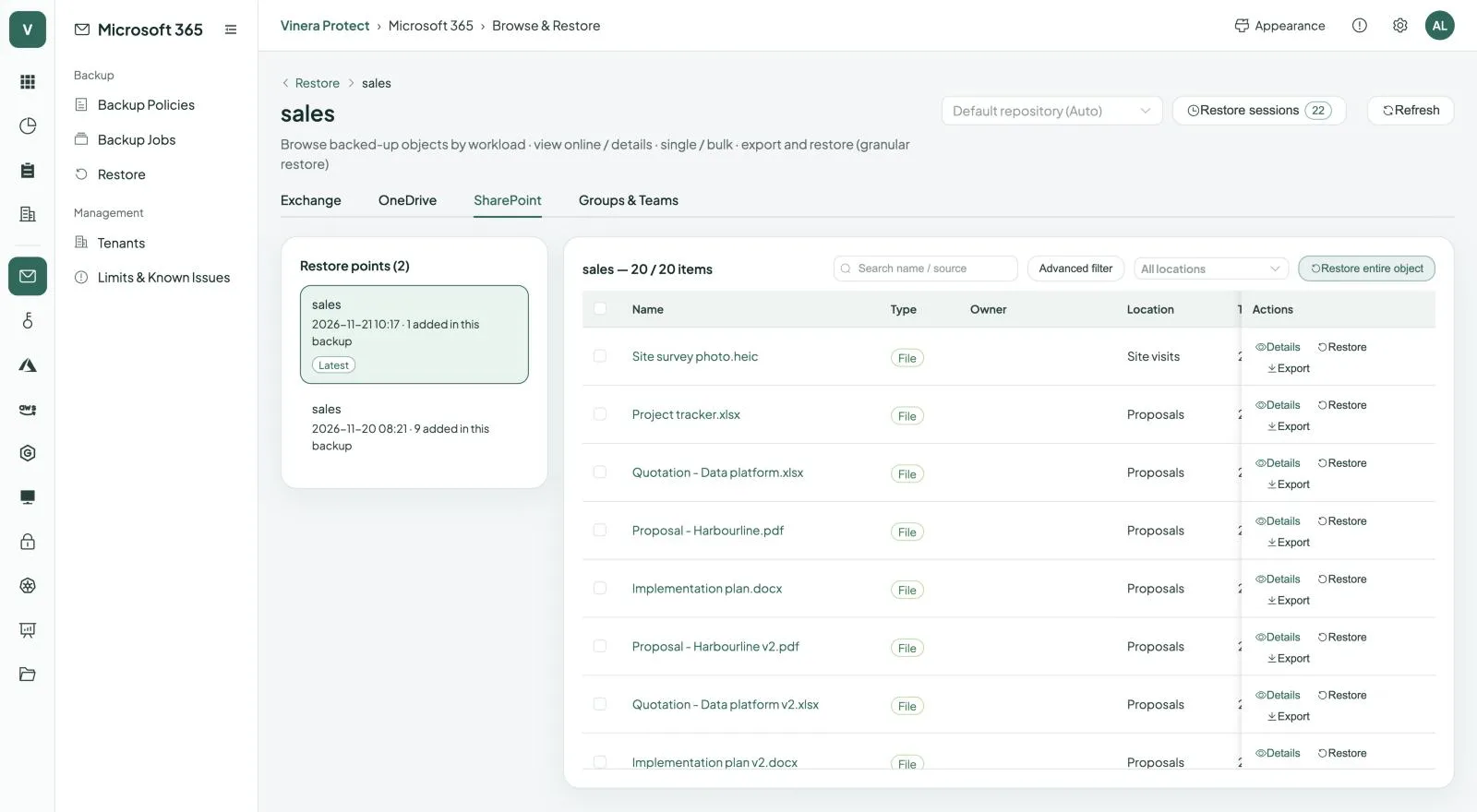
Backed up.Ready to restore.
A walk through the real console: connect your tenant, set one policy for the whole organisation, let backups run, then open a restore point and put back exactly what you need.
Microsoft keeps the service running. Your data is still yours to protect.
Microsoft replicates Microsoft 365 so the service stays available. That protects against Microsoft losing a data centre, not against what happens inside your tenant: a folder deleted by mistake, a sync client that overwrites files everywhere, a leaver’s mailbox removed too early, or an account that someone else has taken over.
Recycle bins and retention windows help for a while, then they run out. A backup that sits apart from your tenant, with restore points you can pick, lets you put things back on your terms.
Mail, files and team conversations, ready to restore.
Exchange Online
Protected
Mail, calendar events and contacts in every user mailbox, with the folder structure kept.
Recovery
Restore one email, event or contact, chosen folders or a whole mailbox. Export mail as .eml or .pst, events as .ics, contacts as .vcf.
OneDrive
Protected
Files and folders in each user’s OneDrive. New OneDrives are picked up automatically.
Recovery
Restore files and folders, or export them as a .zip.
SharePoint
Protected
Files and folders in document libraries, with their sharing permissions.
Recovery
Restore to the original site or to another site, permissions included, or all of a site’s files at once.
Teams
Protected
Files in each team and messages in standard channels.
Recovery
Restore team files. Read channel messages and their replies from any restore point, and download them.
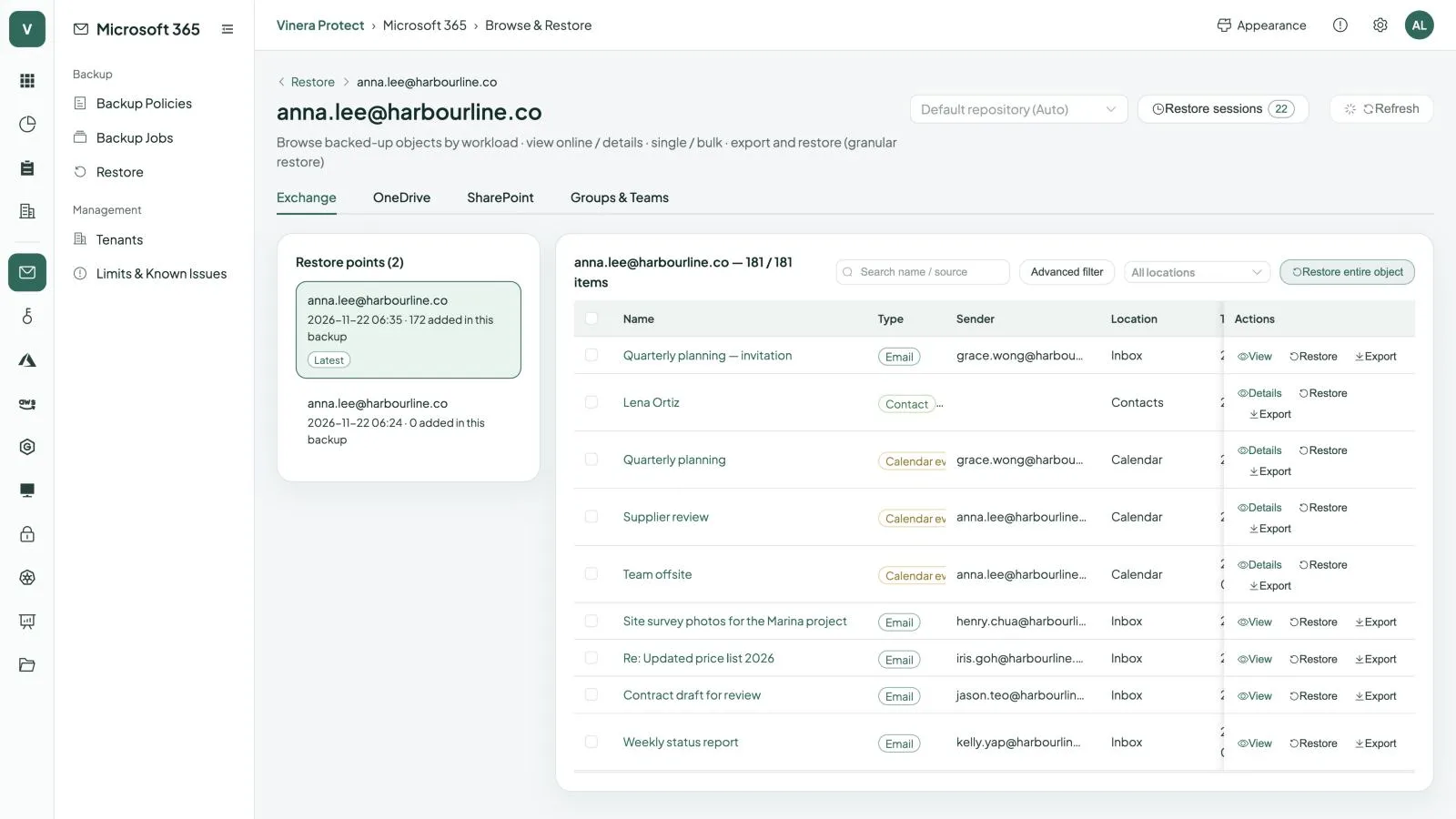
Everything you set up once, then leave running.
Agentless
Protect works through Microsoft Graph. Nothing is installed on devices or servers.
Your own app registration
You register the app in your tenant and grant consent. Remove it, and access ends.
Whole organisation or a selection
Protect everyone, or pick users, groups, sites and teams, with exclusions.
New people included
Organisation-wide policies list users, sites and teams afresh on every run, so new ones are picked up.
Incremental
After the first run, each backup copies only what changed.
Every hour to every week
Set the interval in whole hours, from 1 to 168, or run a policy by hand.
Throttling handled
When Microsoft slows requests down, Protect retries and shows you a throttling alert.
Pick any restore point
Every item keeps its restore points. Choose the one from before the change.
Deduplicated and compressed
Repeated content is stored once and compressed in the backup repository.
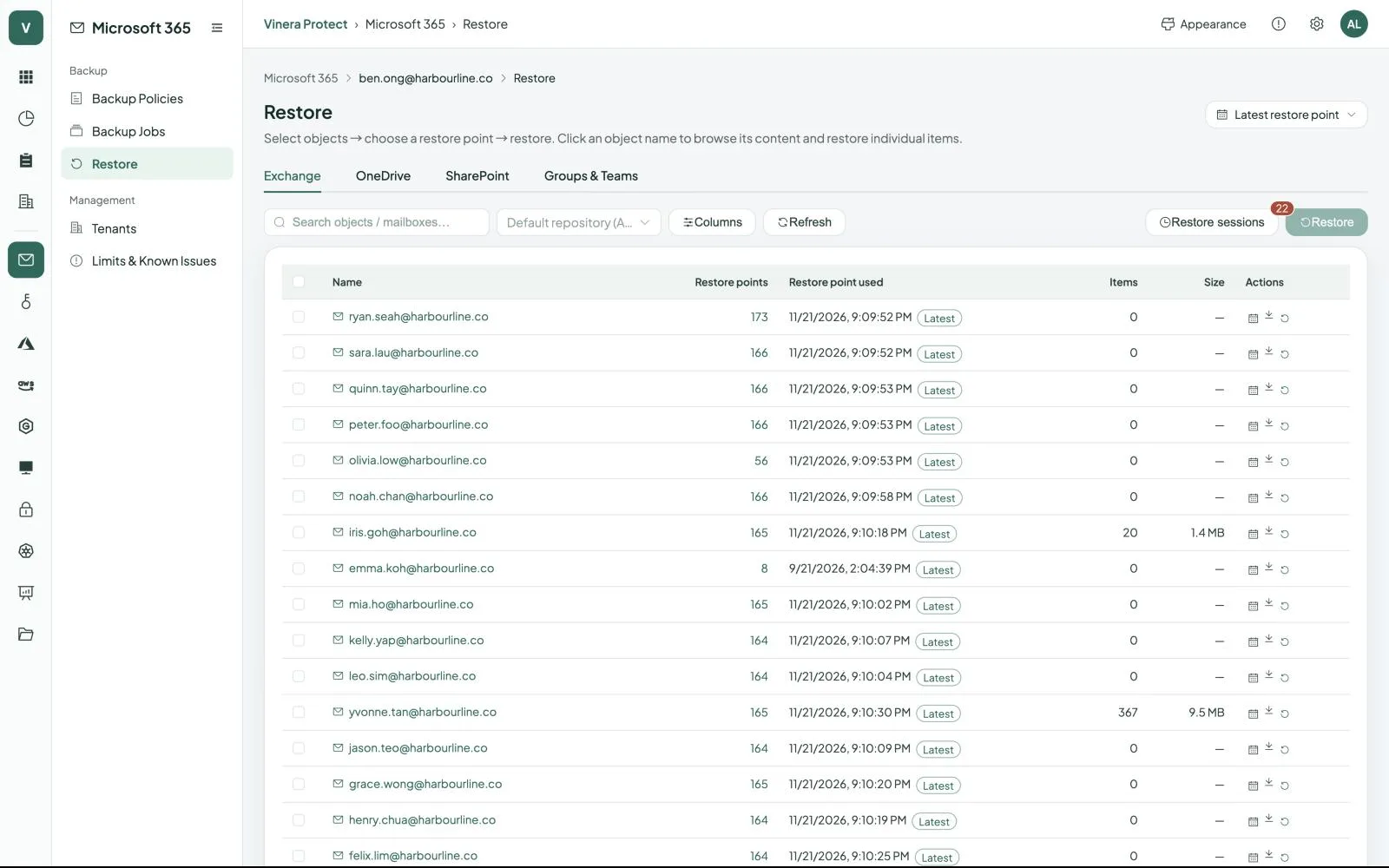
Decide what to protect and how long to keep it.
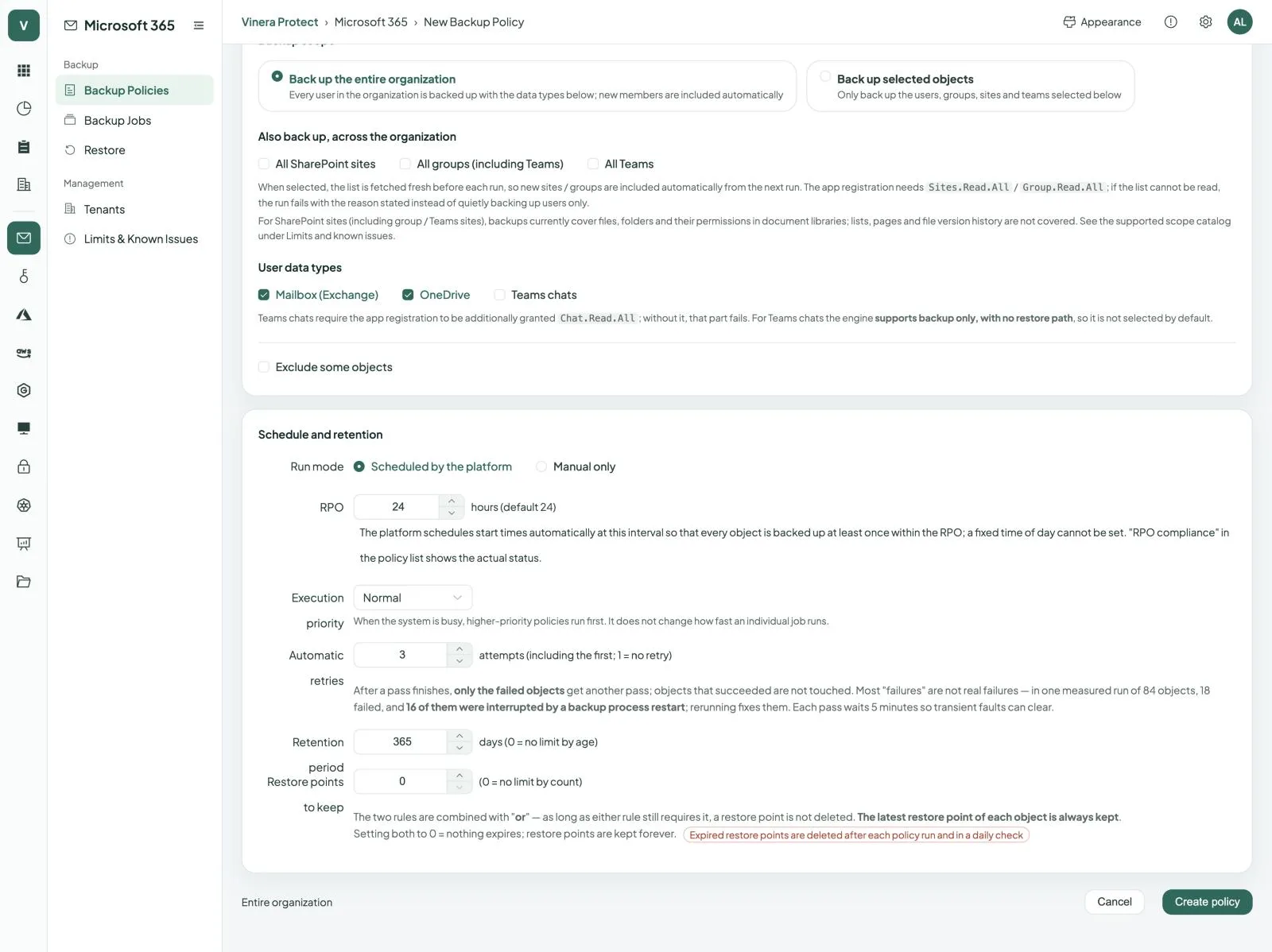
A policy says which tenant, which people, sites and teams, how often to run and how long to keep restore points. Set it once; Protect runs it.
- Everyone, or a selectionProtect the whole organisation, or pick users, groups, sites and teams, with exclusions. All sites, groups and teams can be added too, and new ones are picked up from the next run.
- Retries that only redo what failedAfter a run, only the objects that failed get another pass, a few minutes later. Objects that succeeded are left alone.
- Retention you controlKeep restore points for a number of days, a number of restore points, or both. The latest restore point of each item is always kept; expired ones are deleted after each run and in a daily check.
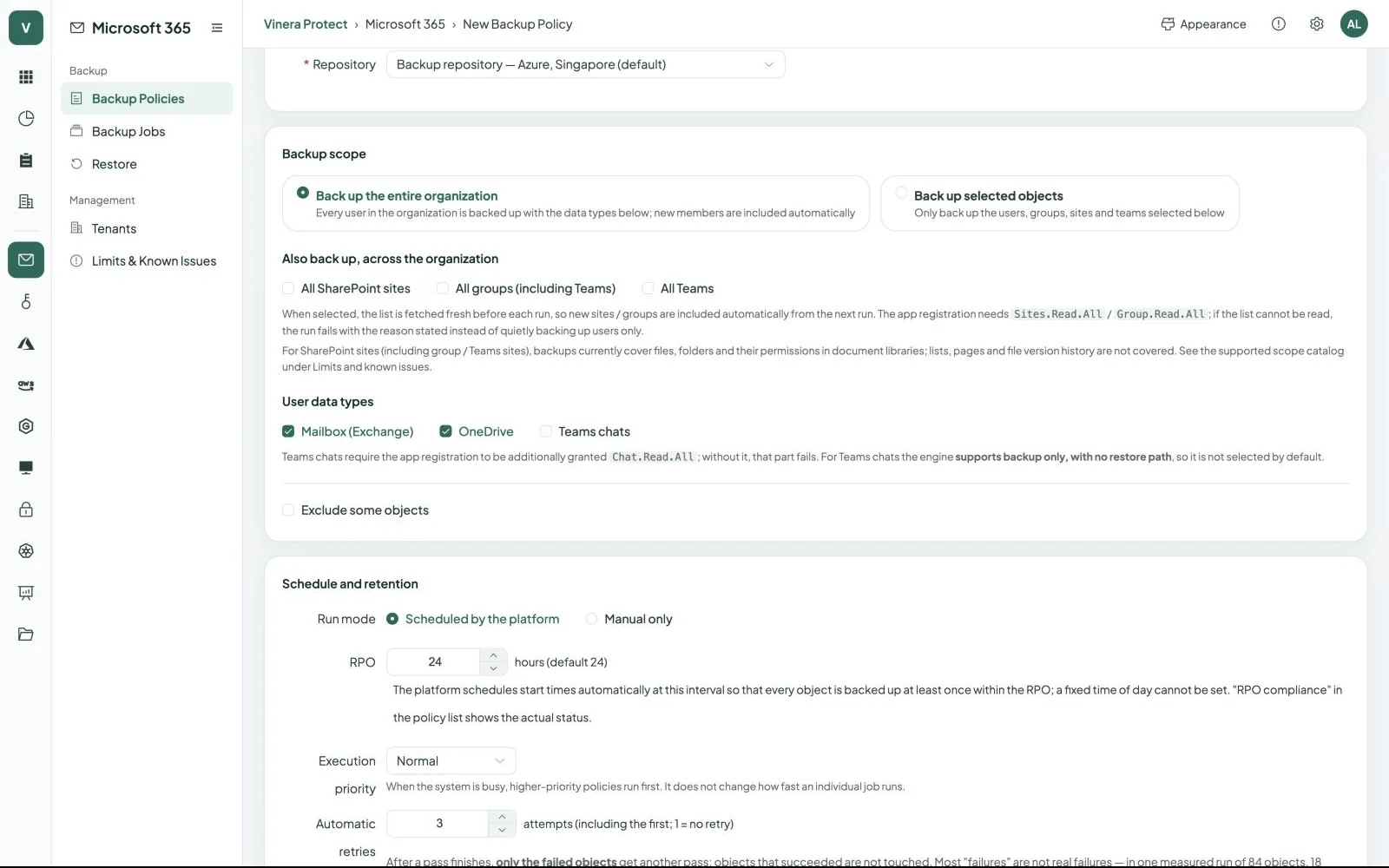
From one email to a whole site’s files.
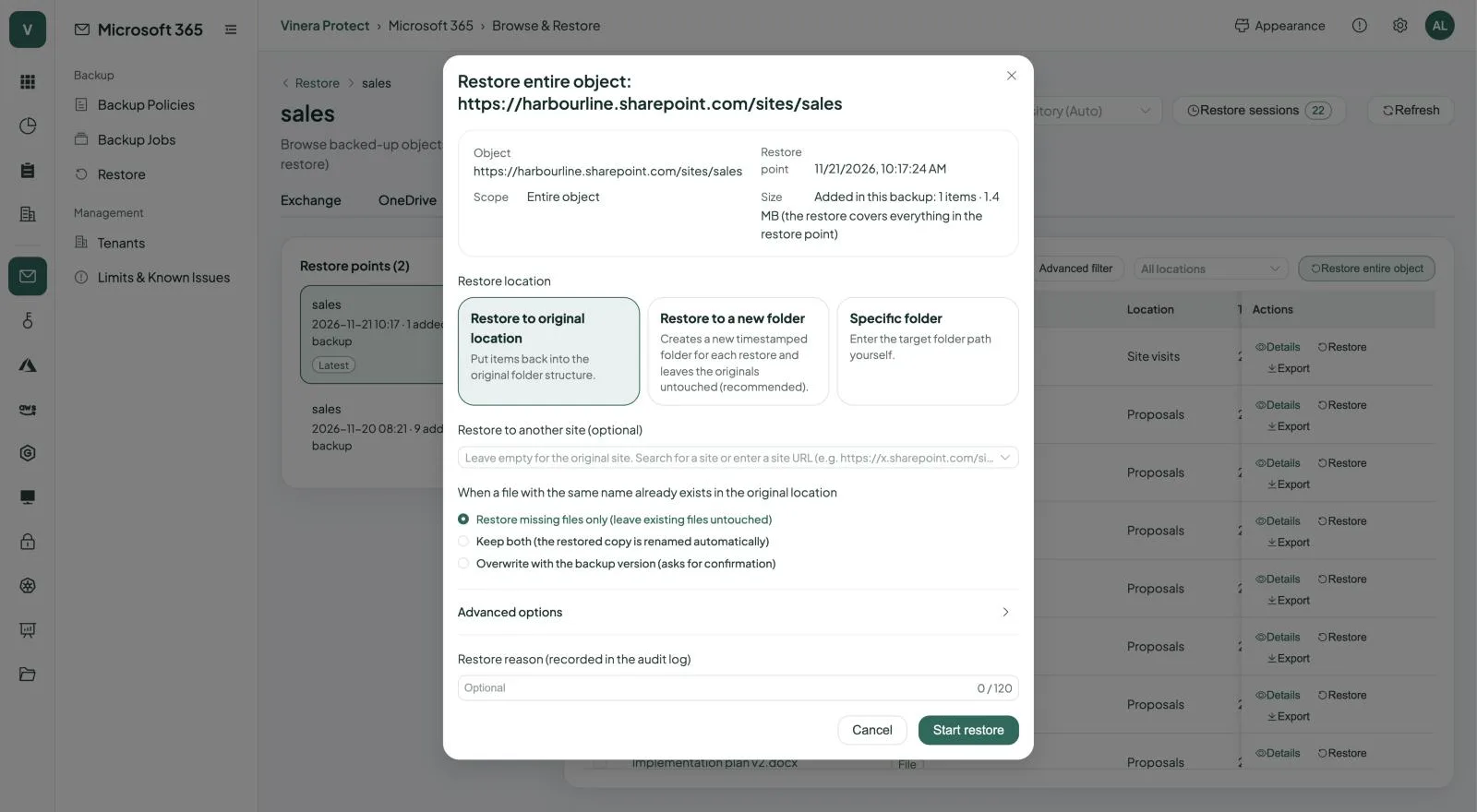
Browse a restore point the way you browse SharePoint or Outlook: open folders, read an email in the browser, then restore or export exactly what you need.
- Choose where it goesBack to its original place, into a new folder, or to another mailbox or site in the same tenant.
- Decide what happens to existing itemsSkip them, keep both copies, or overwrite with the backed-up version.
- Permissions come backSharePoint files are restored with their sharing permissions.
| What you restore | Where it can go | How |
|---|---|---|
| A single email | Original folder, a new folder, or another mailbox in the same tenant | Restore, or download as .eml |
| A calendar event or a contact | The original mailbox | Restore, or download as .ics or .vcf |
| A mailbox or selected folders | Original mailbox or another mailbox in the same tenant | Restore with date, sender and subject filters, or export as .pst |
| OneDrive files and folders | A new folder in OneDrive | Restore, or export as .zip |
| SharePoint files and folders | Original location or another site | Restore with sharing permissions, or export as .zip |
| All files of a SharePoint site | Original site or another site | Restore in one go |
| Teams files and channel messages | The team the backup came from | Restore team files; read and download channel messages |
Exports stay available for 48 hours.
The moments a backup earns its keep.
“Someone deleted the Proposals folder on the sales site.”
RestoreOpen last night’s restore point and put the folder back in its original place, with its sharing permissions.
“A synced laptop overwrote this week’s price lists.”
RestorePick a restore point from before the change and overwrite the damaged files.
“We need the mailbox of someone who left.”
ExportExport the mailbox as a .pst file and hand it to whoever needs it.
“Legal asks for an email from March.”
BrowseFind it in an older restore point, read it in the browser and download it as .eml.
Access you grant. Storage you can point to.
Protect reaches your tenant only through the app you register, and keeps each backup in a repository separate from Microsoft 365.
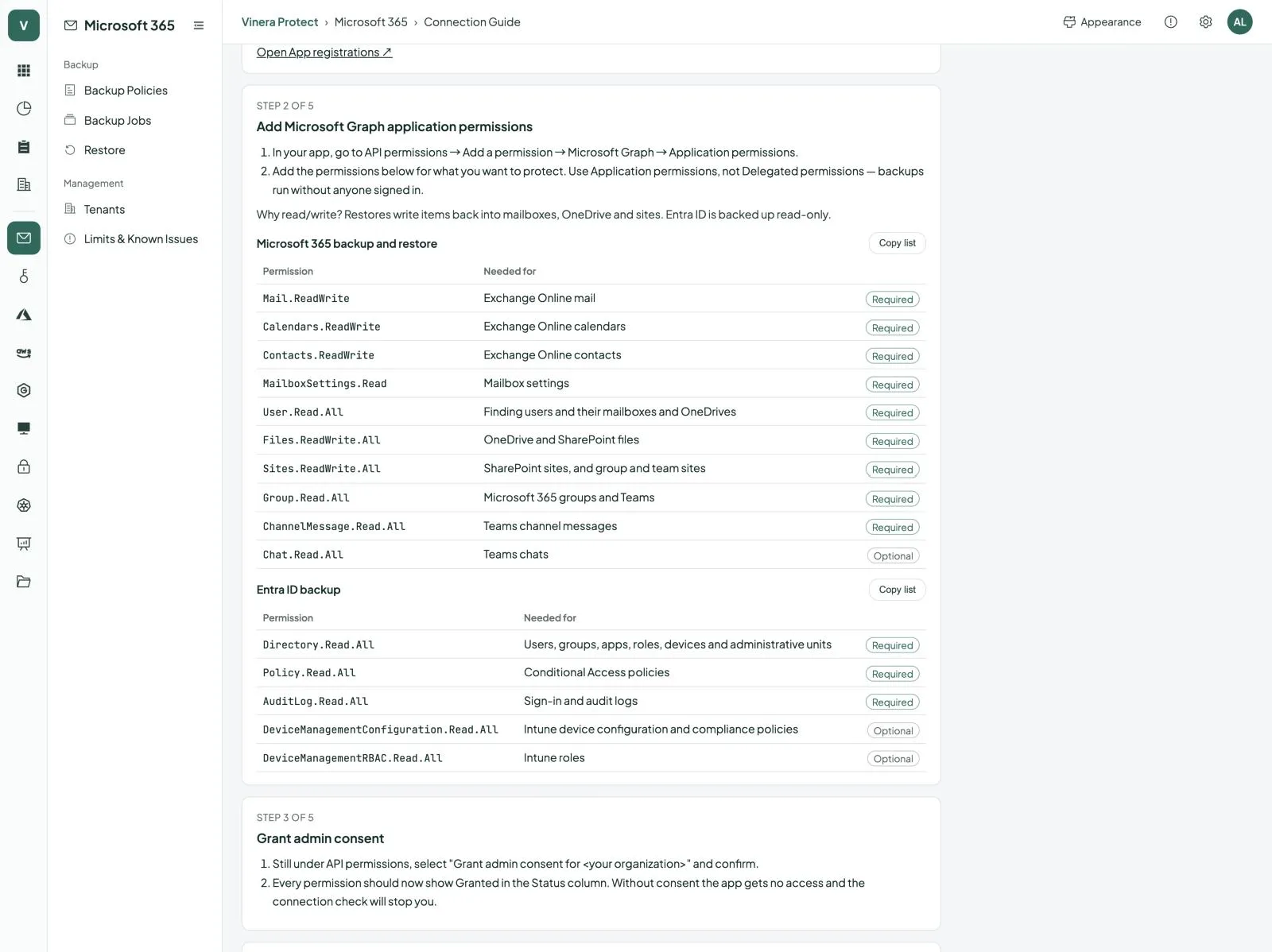
- Your app, your consentYou create a single-tenant app registration, grant the Microsoft Graph permissions with admin consent, and paste its ID and secret into the console. The secret is sealed, never shown again and can be rotated.
- Why it can writeRestores write mail and files back into your tenant, so the app holds read and write permissions for mail, files and sites.
- Stored in SingaporeBackups are kept in Azure Blob Storage in Southeast Asia (Singapore), zone-redundant within the region.
- EncryptedThe backup repository is encrypted, the storage is encrypted at rest, and data travels over HTTPS with TLS 1.2 or later.
- Kept apart per customerEvery restore point belongs to the tenant that created it. No other customer can see or restore it.
Three things to have ready.
What you need
- A Vinera account. Your Vinera contact opens a Protect workspace and turns on the Microsoft 365 module.
- A Microsoft 365 administrator who can register an app and grant admin consent.
- Microsoft Graph application permissions for mail, files, sites, users and groups. The connect guide in the console lists each one.
Then, in three steps
- Connect your tenant. Register the app, grant consent and paste its ID and secret into the console.
- Set a policy. Choose who and what to protect, how often to run and how long to keep restore points.
- Run your first restore. Put a file back on day one, so everyone knows it works.
Microsoft 365 backup, in detail.
Screens and the film are real, taken from a demo workspace. All companies and people shown are fictional.
Doesn’t Microsoft already back up my data?
Microsoft keeps the service available and replicates it across its data centres. Deleted items go to recycle bins and retention windows that end after a while. A separate backup gives you restore points you choose, kept apart from your tenant.
What exactly is backed up?
Mail, calendar events and contacts in user mailboxes; files and folders in OneDrive; files and folders in SharePoint document libraries with their sharing permissions; and files and standard-channel messages in Teams.
How often do backups run?
On the interval you set, in whole hours from 1 to 168, or by hand. After the first run only changes are copied.
Where are my backups stored?
In Azure Blob Storage in Microsoft Azure’s Southeast Asia (Singapore) region, zone-redundant within the region.
What access does Protect need in my tenant?
An app registration you create, with Microsoft Graph application permissions and admin consent. It needs write access because restores put mail and files back. Remove the app and Protect can no longer reach your tenant.
How long are backups kept?
As long as each policy says: a number of days, a number of restore points, or both. A restore point is kept while either rule still needs it, and the latest restore point of each item is always kept. Expired restore points are deleted after each policy run and in a daily check. Set both rules to 0 to keep everything.
How do I get it?
Book a demo. Your Vinera contact opens a Protect workspace with the Microsoft 365 module; you then connect your tenant, set a policy and run your first restore yourself.
One product, a module for each platform.
See your own tenant backed up.
Book a demo and we will connect a test tenant with you, run a backup and restore a file together.